Event Notifications Guide
Last updated: September 26, 2025
The Event Notifications feature allows users to share real-time updates about voyage and barge status changes with colleagues, customers, or carriers. Notifications help keep all stakeholders aligned without the need for manual follow-up emails.
When Notifications Are Sent
Notifications can be triggered when users update key voyage or barge fields, including:
Load State (e.g., Empty → Loaded, Discharge Ended → Released Discharged)
Load/Discharge Ports
Customers/Charterers associated with a voyage
Load State
What it means
A barge’s Load State (Empty, Loaded, On Storage, Tendered to Load/Discharge, etc.) indicates its cargo condition. When this field is updated, notifications help operations teams track readiness for loading, discharging, or storage billing.
Example: From “Loaded” → “Discharge Started”
Locate the Voyage or Barge
Click on the Load State field
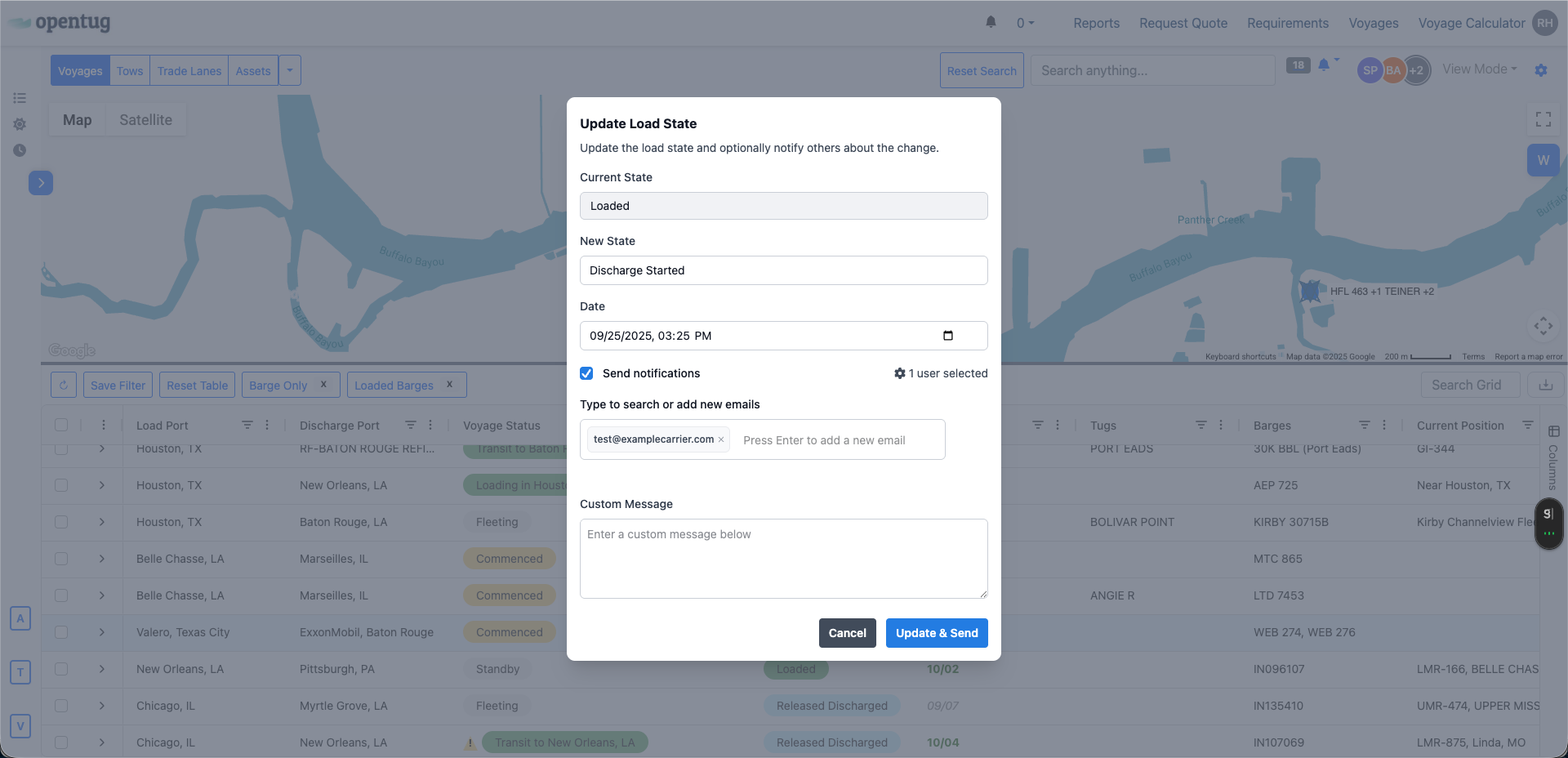
A pop-up window will appear showing the Current State, New State, and Date.
Select New State
Choose from available options (e.g., Loaded, Discharge Started).
Adjust the effective date and time if necessary.
Enable Notifications
Check “Send notifications” to alert recipients.
Distribution emails from the Carrier and Customer will automatically populate. Additional emails can be manually added as well.
Add a Custom Message (Optional)
Enter additional context in the Custom Message field.
Confirm & Send
Click Update & Send.
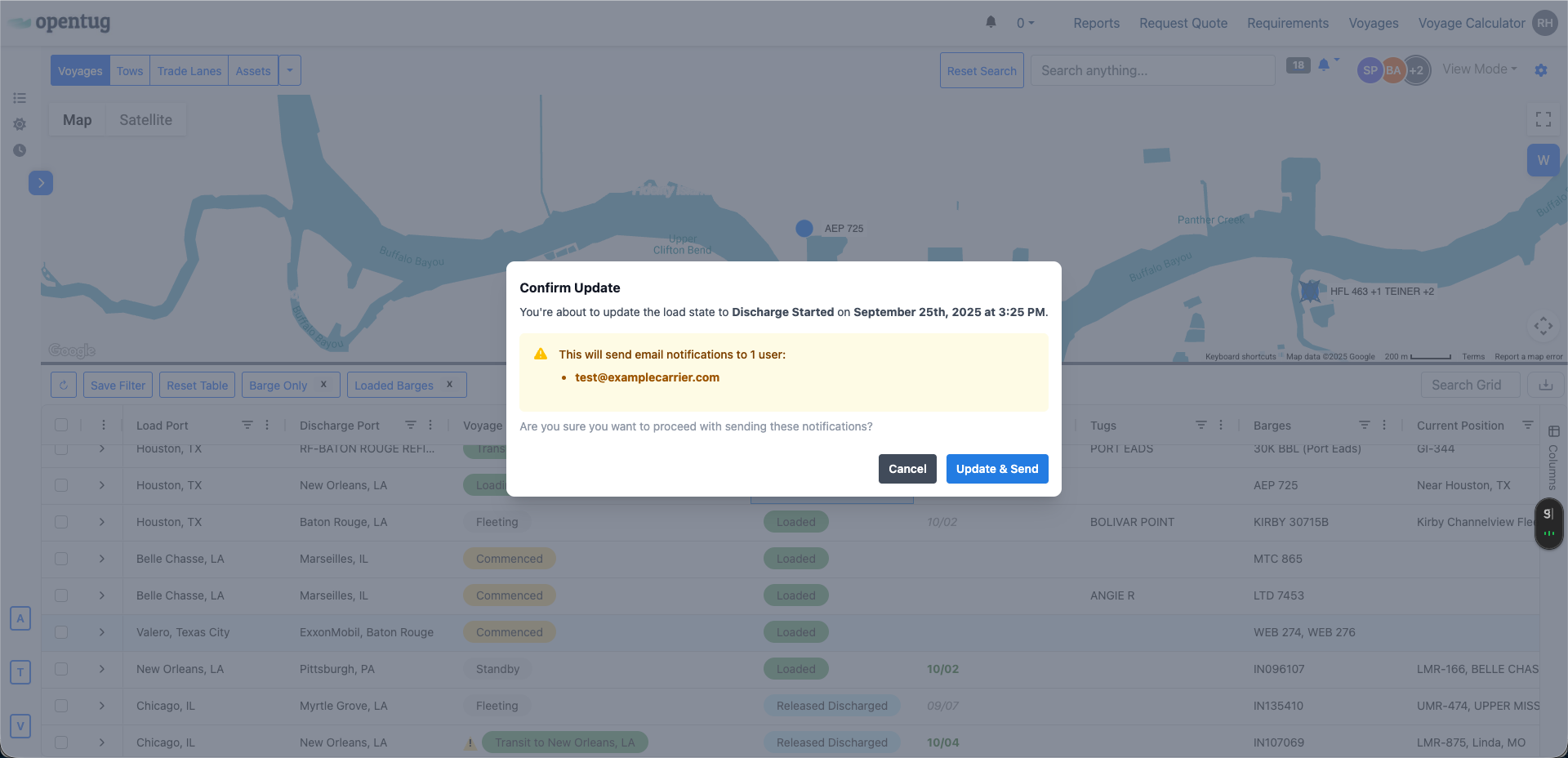
A confirmation prompt will display, showing who will receive the notification.
Select Update & Send again to finalize.
Port Change
What it means
Port changes notify users when a voyage’s Load Port or Discharge Port is updated. This ensures routing changes (reconsignments) are clearly communicated.
Example: Discharge Port Update (New Orleans → Chicago)
Locate the Voyage or Barge
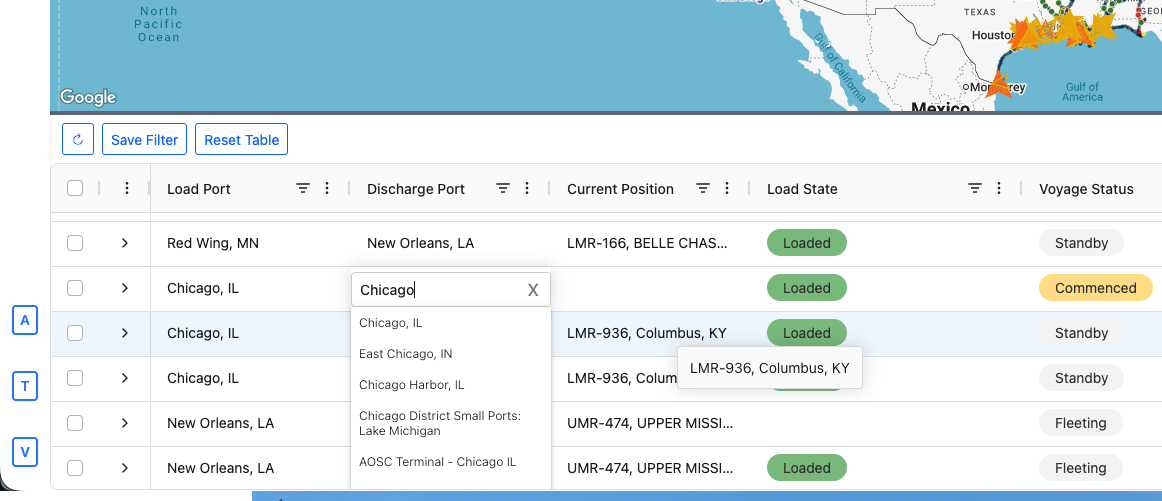
Double-Click on the Discharge Port field
A pop-up window will appear showing a dropdown selector for ports.
Select or Search
Choose from available options or search for the desired port.
Enable Notifications
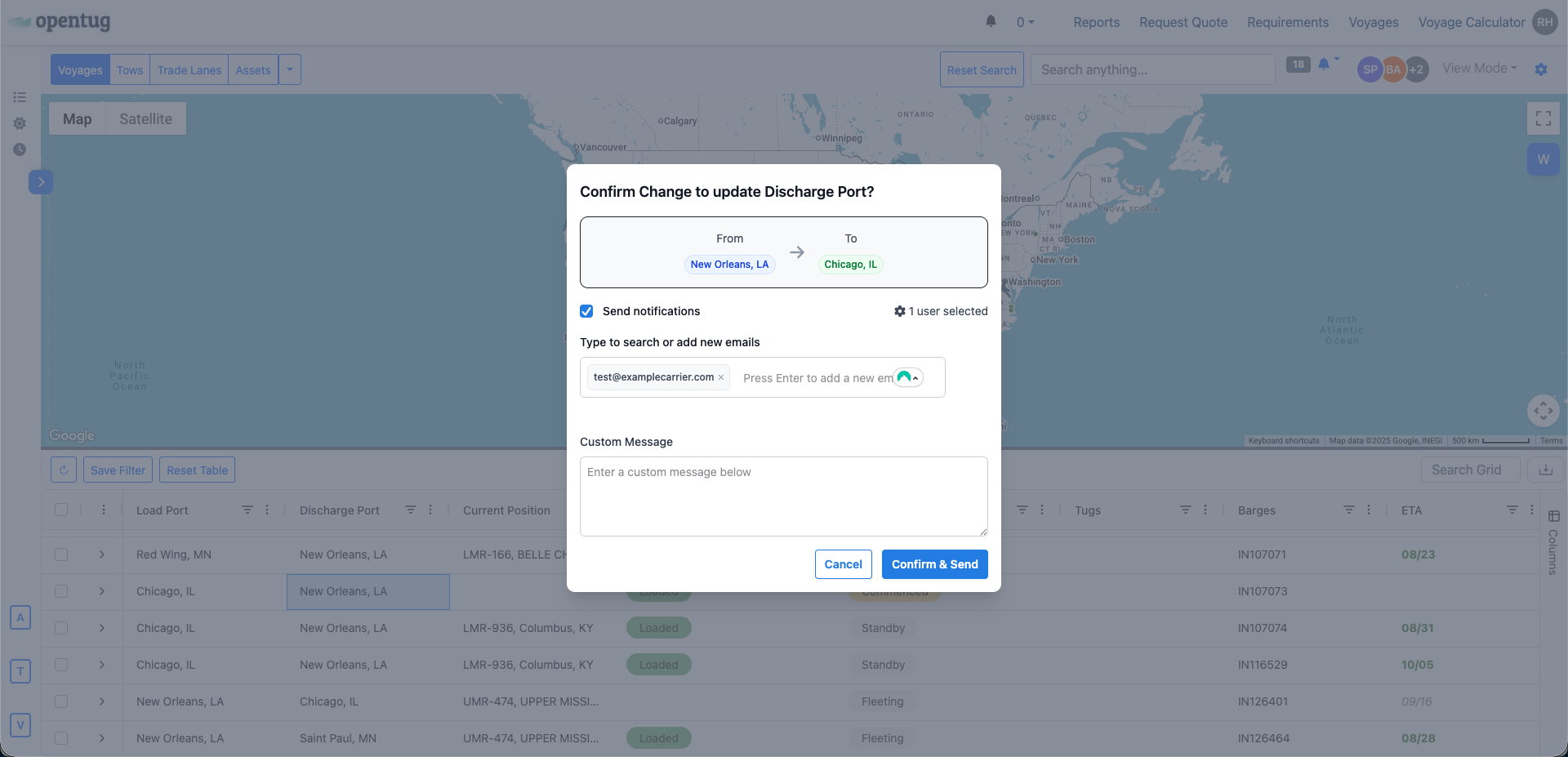
Check “Send notifications” to alert recipients.
Distribution emails from the Carrier and Customer will automatically populate. Additional emails can be manually added as well.
Add a Custom Message (Optional)
Enter additional context in the Custom Message field.
Confirm & Send
Click Update & Send.
A confirmation prompt will display, showing who will receive the notification.
Select Update & Send again to finalize.
Customer Assignment Changes
What it means
When a barge or voyage is reassigned to a different Customer, notifications ensure reports, invoices, and dashboards reflect the correct commercial party.
Double click the Charterer Name field in the voyage row.
Search or select from the dropdown list.
Notification panel confirms the change (From: Previous → To: New Selection).
Select email recipients (customer ops, commercial team, etc.).
Add a custom message like “Assigned for Pink Standard Potash cargo.”
Confirm & Send.
Tips for Using Notifications Effectively
Pre-load email groups: set distribution emails on in the Customer Management Page