Customer Management Page Guide
Last updated: November 5, 2025
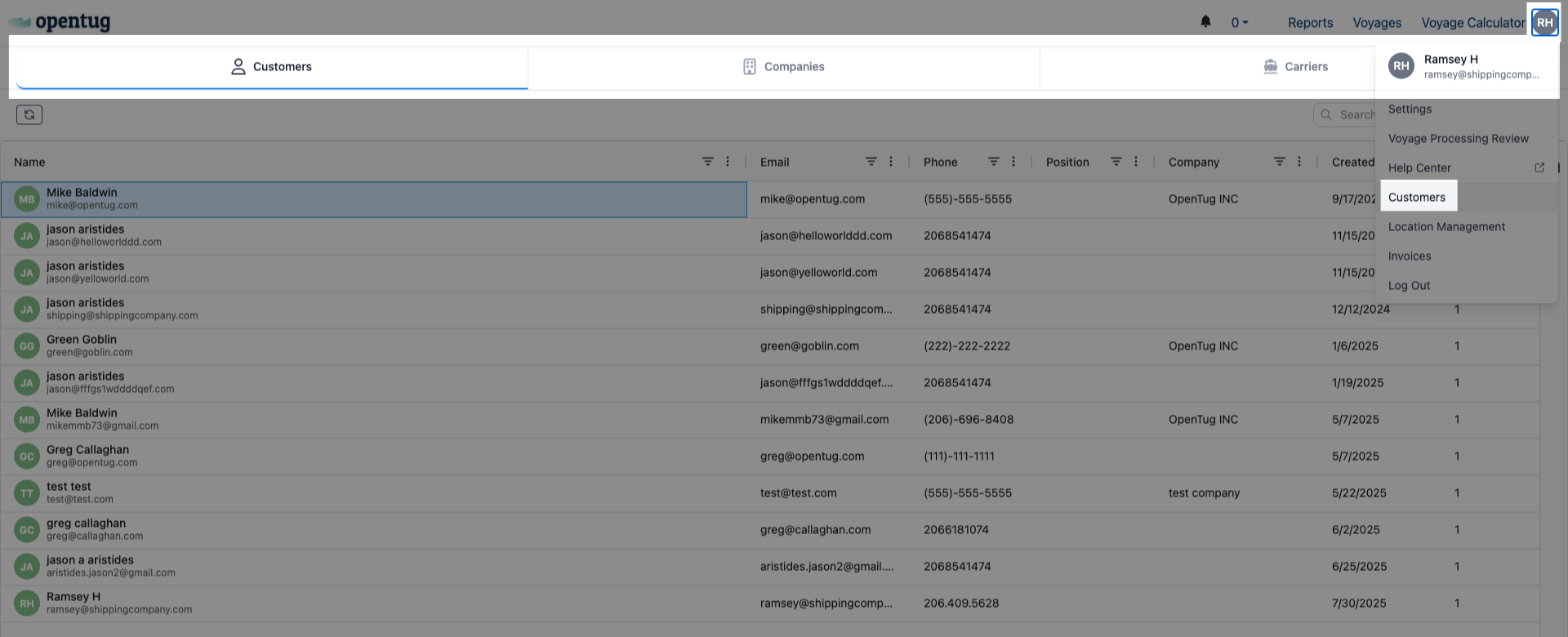
The Customer Management page is where you manage all of your customer-related records in one place. It is divided into three main tabs:
Customers – individual contacts within an organization.
Companies – the organizations you do business with.
Carriers – partner transportation providers.
Each tab provides a searchable, filterable grid with customizable columns to help you quickly locate and manage records.
Customers Tab
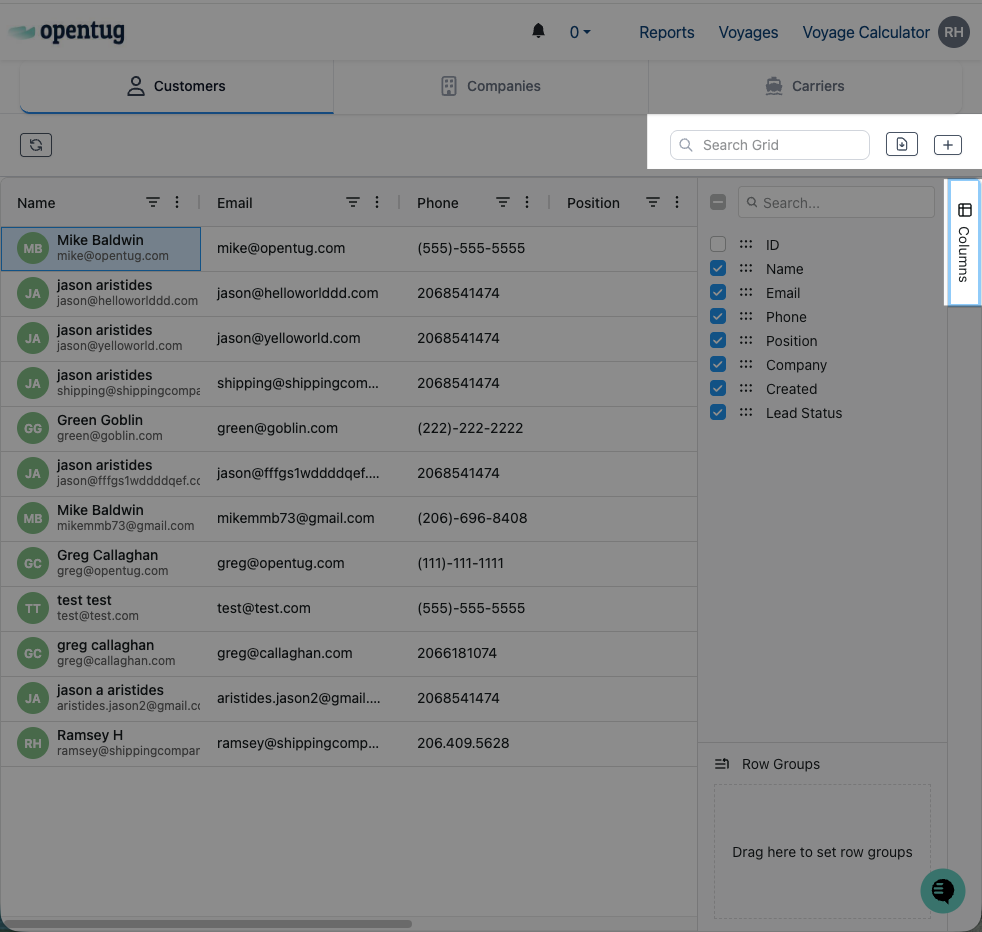
The Customers tab lists all individual customer contacts.
Key Fields:
Name – contact’s full name.
Email – primary email address for communication.
Phone – direct phone number.
Position – job title or role.
Company – organization the contact belongs to.
Created – date the contact was added.
Lead Indicator – tracks if the contact is marked as a lead.
Actions:
Add new customers using the ➕ (Add) button.
Use the Search Grid bar to quickly find a customer.
Manage columns using the Columns panel on the right-hand side.
Companies Tab
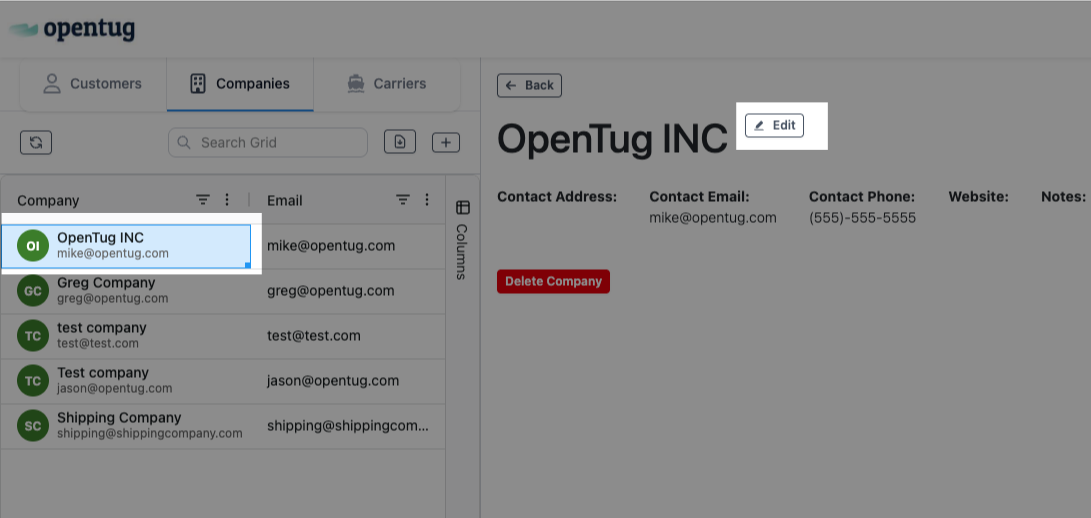
The Companies tab maintains a list of all organizations associated with your business.
Key Fields:
Company – organization name.
Email – primary company email.
Phone – general contact number.
Website – company website (if available).
Address – headquarters or main office address.
Annual Revenue – optional field to track company size/value.
Created – date the company record was added.
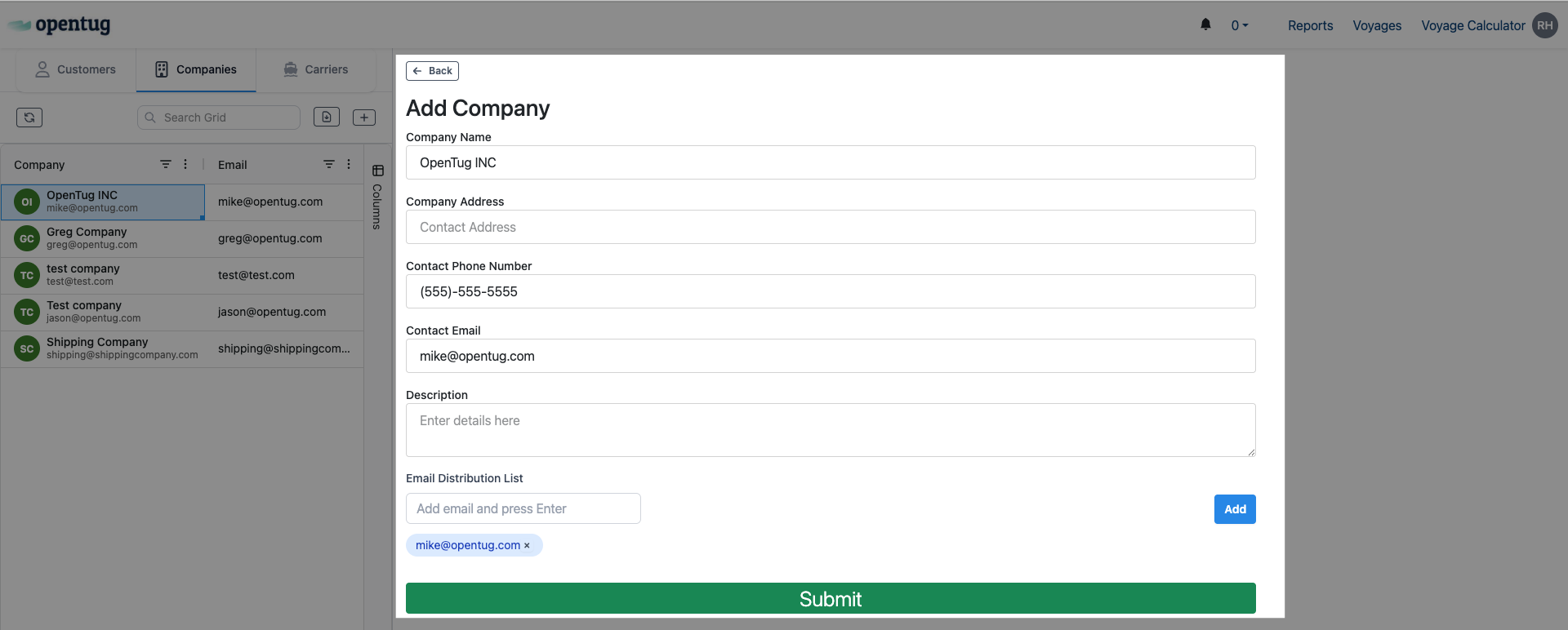
Adding or Editing a Company:
Select Add Company to open the form.
Enter key details such as company name, phone, email, and address.
Add a Description for internal notes.
Use the Email Distribution List field to include the email address to be used for event notifications.
Click Submit to save the record.
Carriers Tab
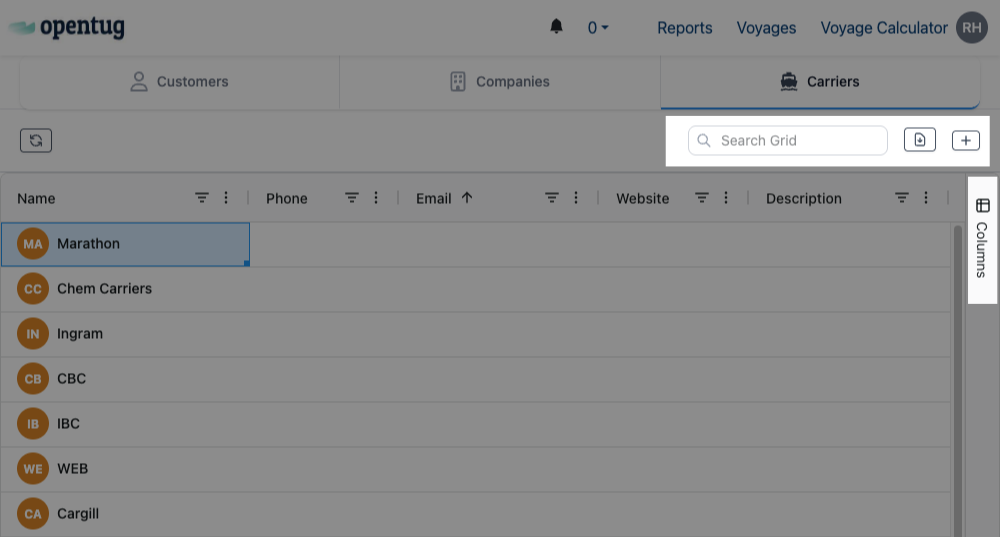
The Carriers tab manages logistics and shipping providers you work with.
Key Fields:
Name – carrier company name.
Phone – main contact number.
Email – contact email for carrier operations.
Website – link to carrier’s website (if available).
Description – internal notes about the carrier.
Actions:
Search for carriers using the Search Grid.
Add new carriers via the ➕ (Add) button.
Customize the visible fields using the Columns panel.