Templates Guide
Last updated: October 22, 2025
Templates in OpenTug allow you to standardize and automate messages across your organization. Whether you’re sending voyage orders, event notifications, invoices, or customer assignments, templates ensure consistency and save time.
Templates are highly flexible, they support custom text, dynamic variables (pulled from voyage or barge data), and can be tailored for different scenarios. Once set, they are automatically used when OpenTug triggers the associated message type.
Where to Find Templates
Go to Settings > Company Settings > Generic Templates.
From here you can:
View existing templates
Edit or duplicate them
Create new templates from scratch
Supported Message Types
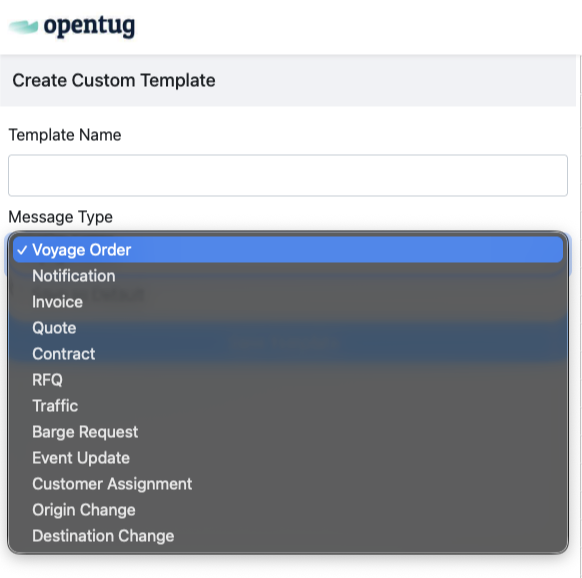
When creating a new template, you’ll select a Message Type. Each type corresponds to a specific workflow where the template will be used:
Voyage Order – Sends instructions to carriers for a voyage.
Barge Request – Templates for requesting barge assignments.
Event Update – Updates triggered by voyage or barge events (e.g., load state changes).
Customer Assignment – Notifies customers when a barge or voyage is reassigned.
Origin Change / Destination Change – Alerts stakeholders when ports are updated.
Creating a Template
Click Create New Template.
Select Spreadsheet Editor or HTML Editor.
Enter a Template Name.
Select the Message Type (e.g., Voyage Order, Event Update).
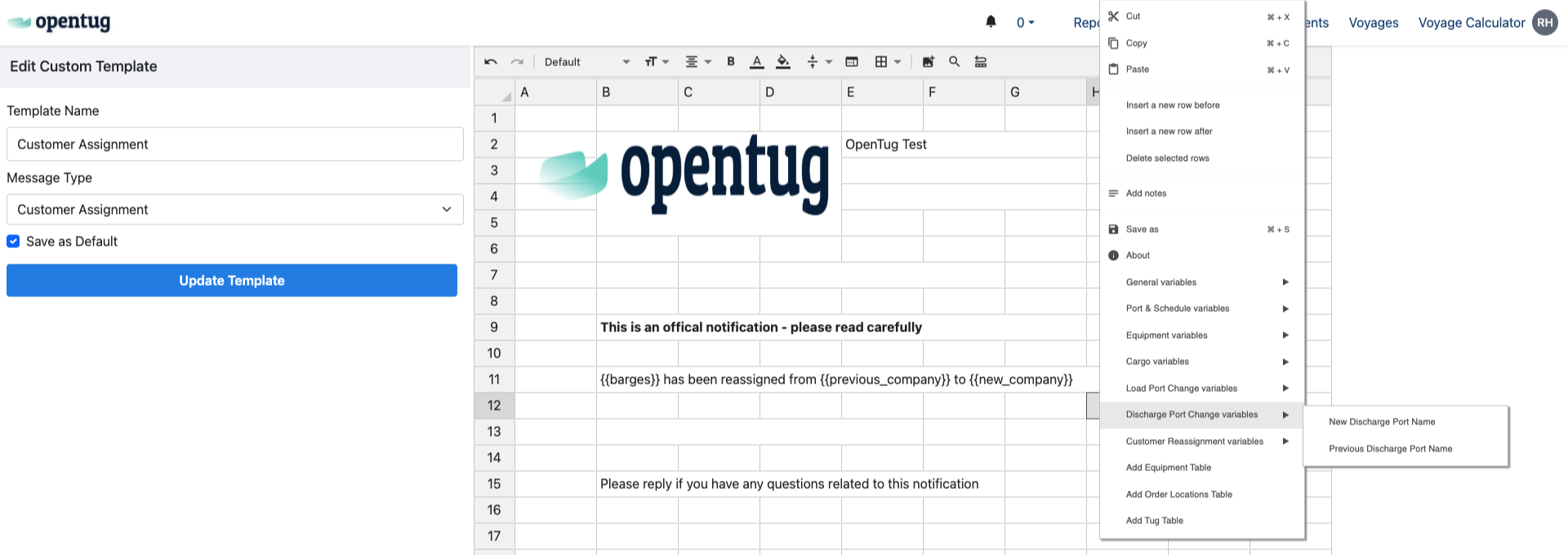
Use the editor to design the message.
You can type static text.
Insert variables (auto-filled fields like barge name, port, ETA).
Format text with bold, italics, or tables.
Save your template. You can also mark it as Default for its message type.
Using Variables
Variables allow OpenTug to pull real-time data into your messages. For example:
{{barges}}→ lists assigned barges{{previous_company}}→ shows prior customer assignment{{new_company}}→ shows updated customer assignmentPort Change Variables
{{previous_load_port}}→ prior load port{{new_load_port}}→ updated load port
You can add variables by right-clicking in the editor and selecting from categories:
General variables
Port & Schedule variables
Equipment variables
Cargo variables
Load/Discharge Port Change variables
Customer Reassignment variables
How Templates Are Used
Once a template is created, it will automatically be pulled when OpenTug generates that message type:
A Voyage Order Template will be applied when dispatching voyage instructions.
An Event Update Template will be used when a barge load state changes.
A Customer Assignment Template will trigger when reassigning a voyage to a new customer.
You don’t need to manually select templates every time, the system handles this for you.
Best Practices
Use variables – They reduce manual entry and prevent mistakes.
Set defaults – Ensure every message type has a default template to avoid gaps.
Test templates – Send a test message to yourself before using them in production.