User and Group Management
Last updated: November 5, 2025
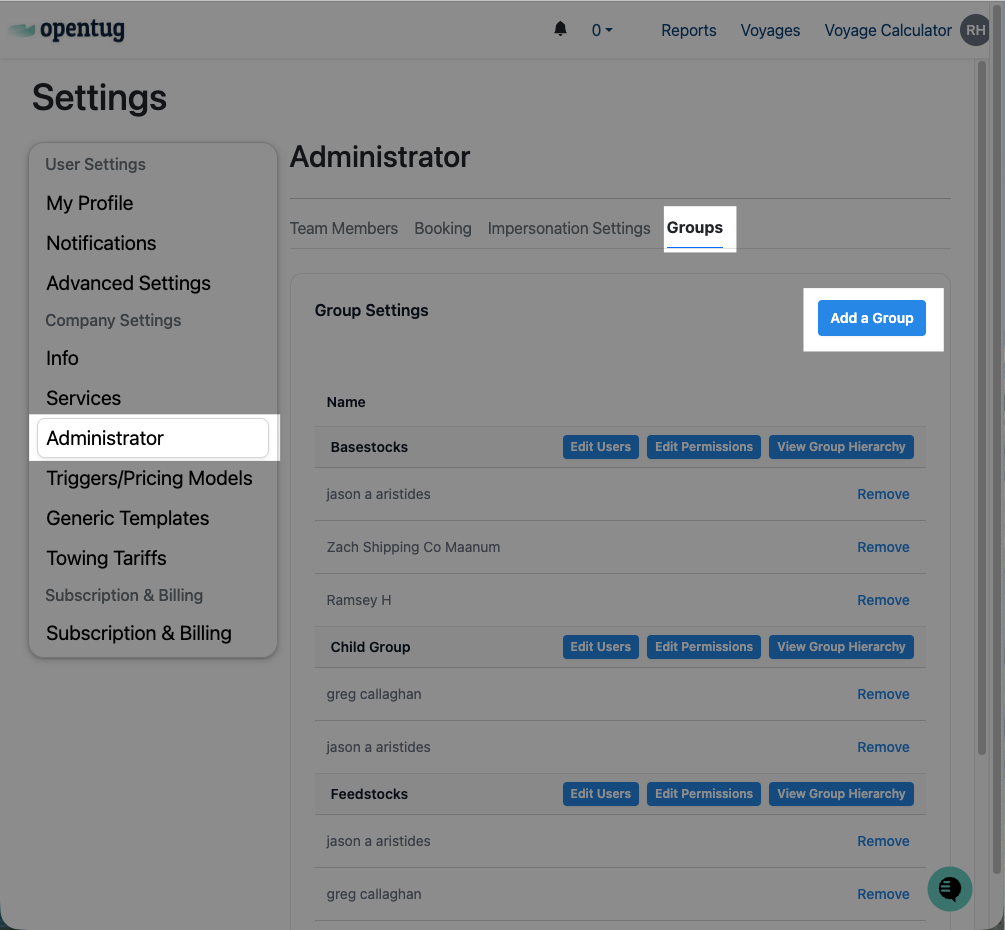
The User and Group Management section (found under Settings → Company Settings → Administrator → Groups) allows company administrators to manage team members, control access permissions, and organize users into groups for better operational control.
1. Groups
Groups are used to organize users by business function, customer responsibility, or operational workflow.
Creating and Managing Groups
Click Add a Group to create a new group.
Assign a Group Name (e.g., “Basestocks”, “Grain”, “Feedstocks”).
Adding Users to Groups
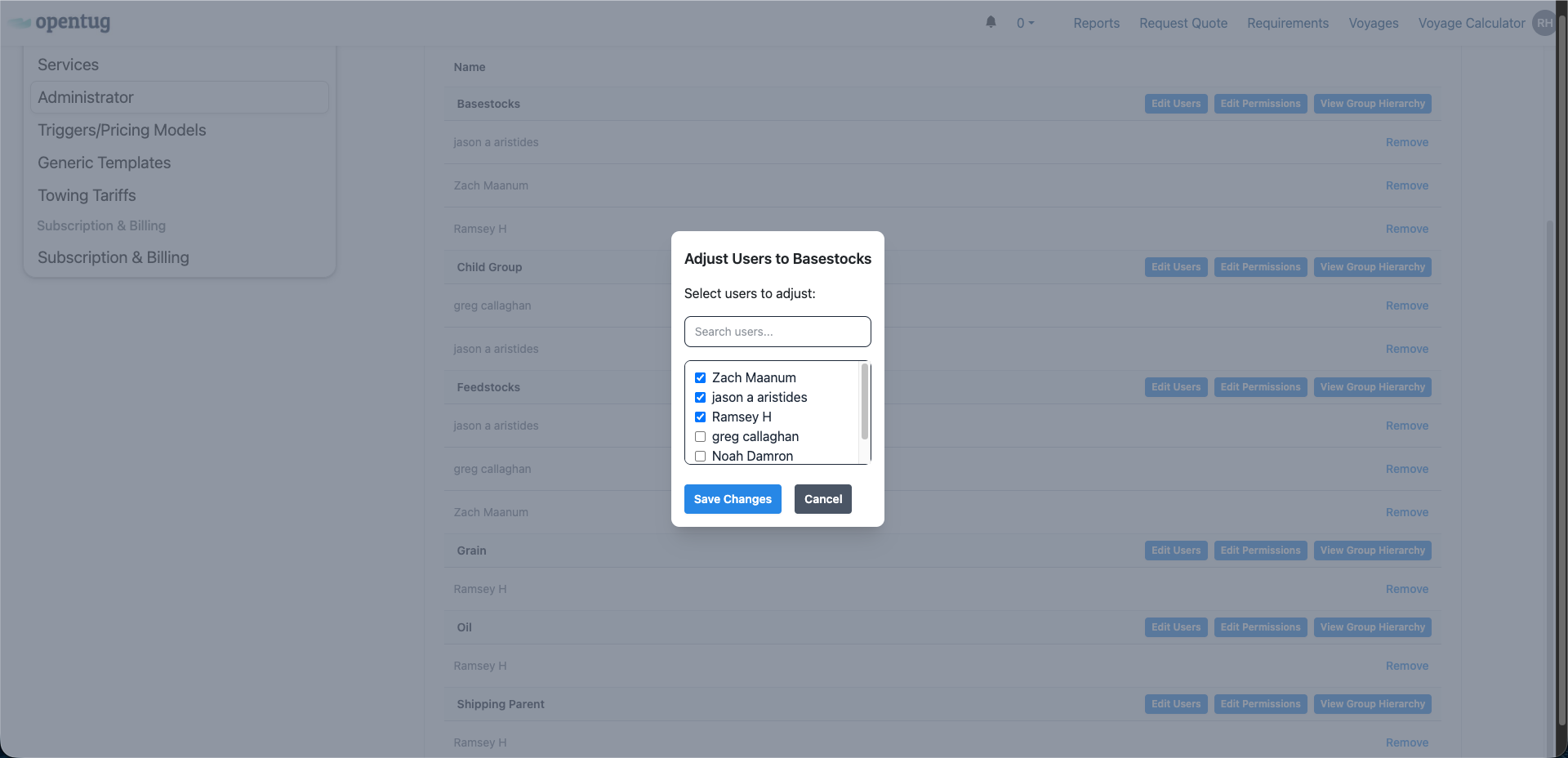
Select Edit Users for a group.
A dialog box will display all available team members.
Check/uncheck names to add or remove users.
Click Save Changes.
2. Group Permissions
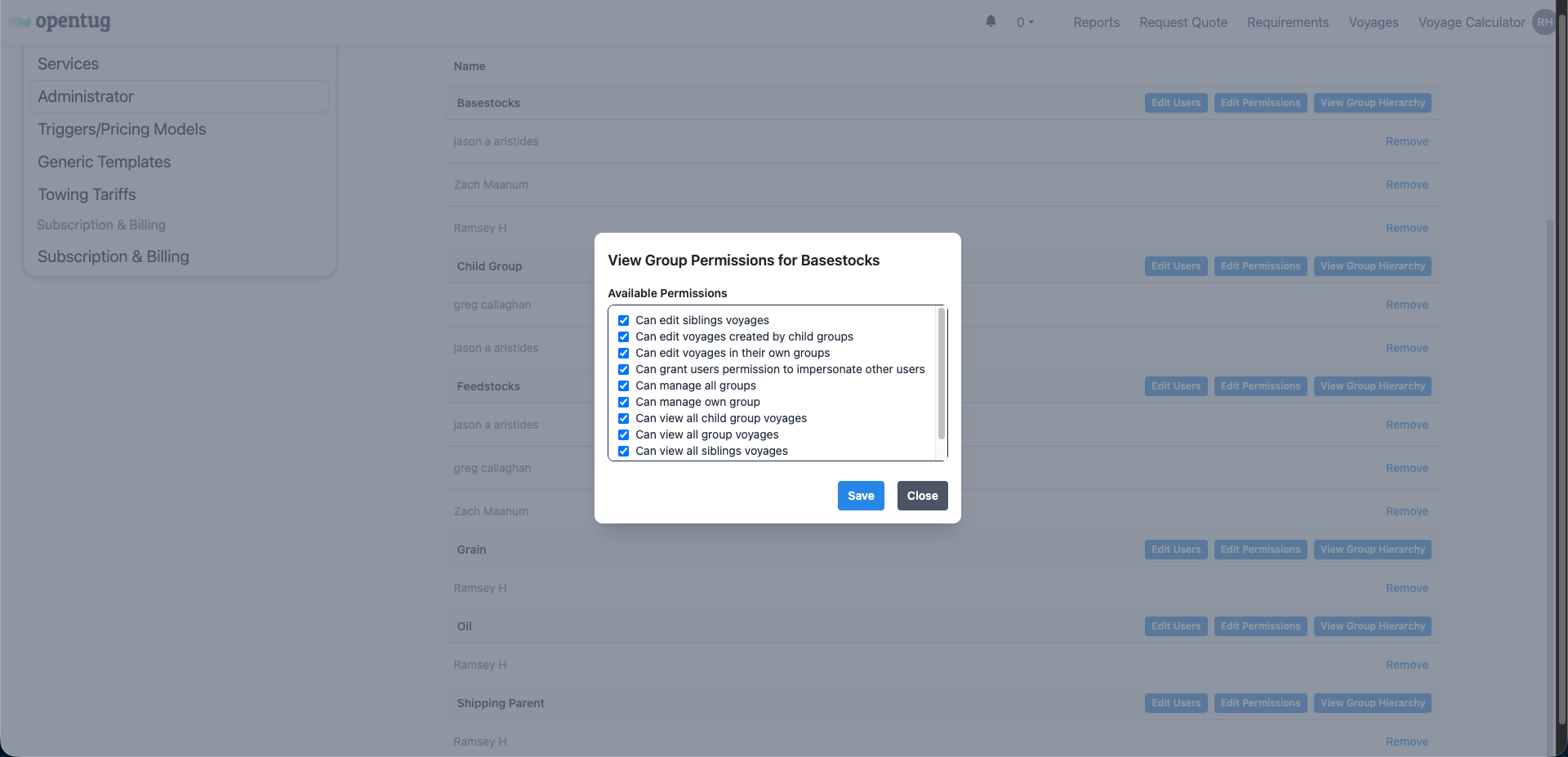
Each group can have unique permissions, controlling what members can view or edit.
Available Permissions include:
Edit sibling voyages.
Edit voyages created by child groups.
Grant impersonation privileges.
Manage their own group.
Manage all groups.
View all child group voyages.
View all sibling group voyages.
To configure:
Click Edit Permissions for the group.
Check/uncheck boxes for the desired permissions.
Click Save.
3. Group Hierarchies
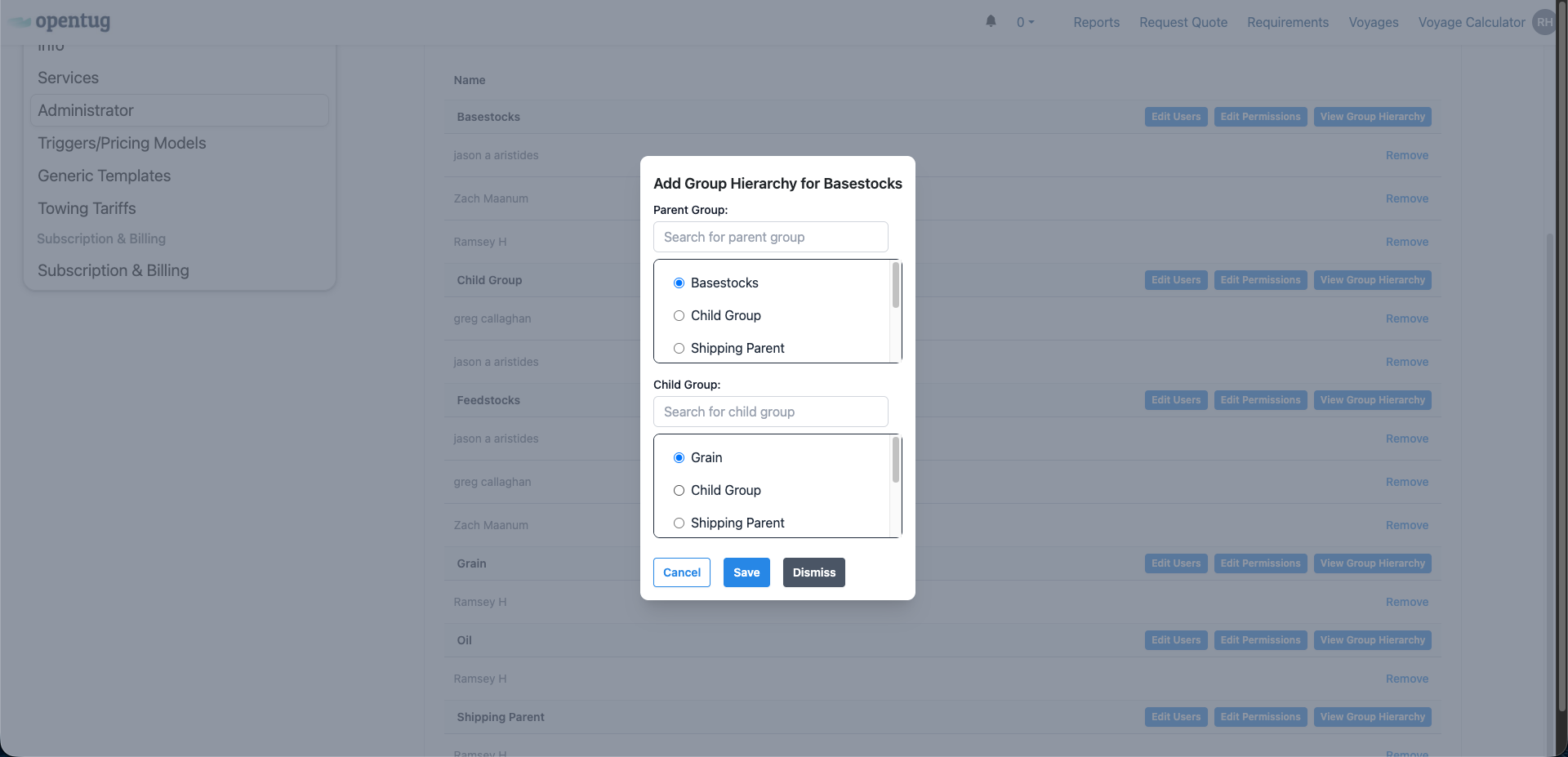
Group hierarchies define relationships between parent and child groups. This is useful when permissions or reporting structures should cascade.
Steps to Add a Hierarchy:
Click View Group Hierarchy.
Select Add Hierarchy.
Choose a Parent Group and a Child Group from the dropdown lists.
Save the hierarchy.
Best Practices
Use Groups for Clarity: Assign groups based on customers, product lines, or responsibilities.
Use Hierarchies for Oversight: Parent groups can oversee child groups, ideal for supervisors and managers or creating "read-only" access.