Managing Assets
Last updated: October 27, 2025
Assets represent the tugs, barges, and vessels that your team manages within OpenTug. If your organization has AI Carrier Traffic Ingestion enabled, assets will be added automatically based on incoming traffic data.
You can also manually add, edit, or remove assets at any time by following the steps below.
Adding an Asset
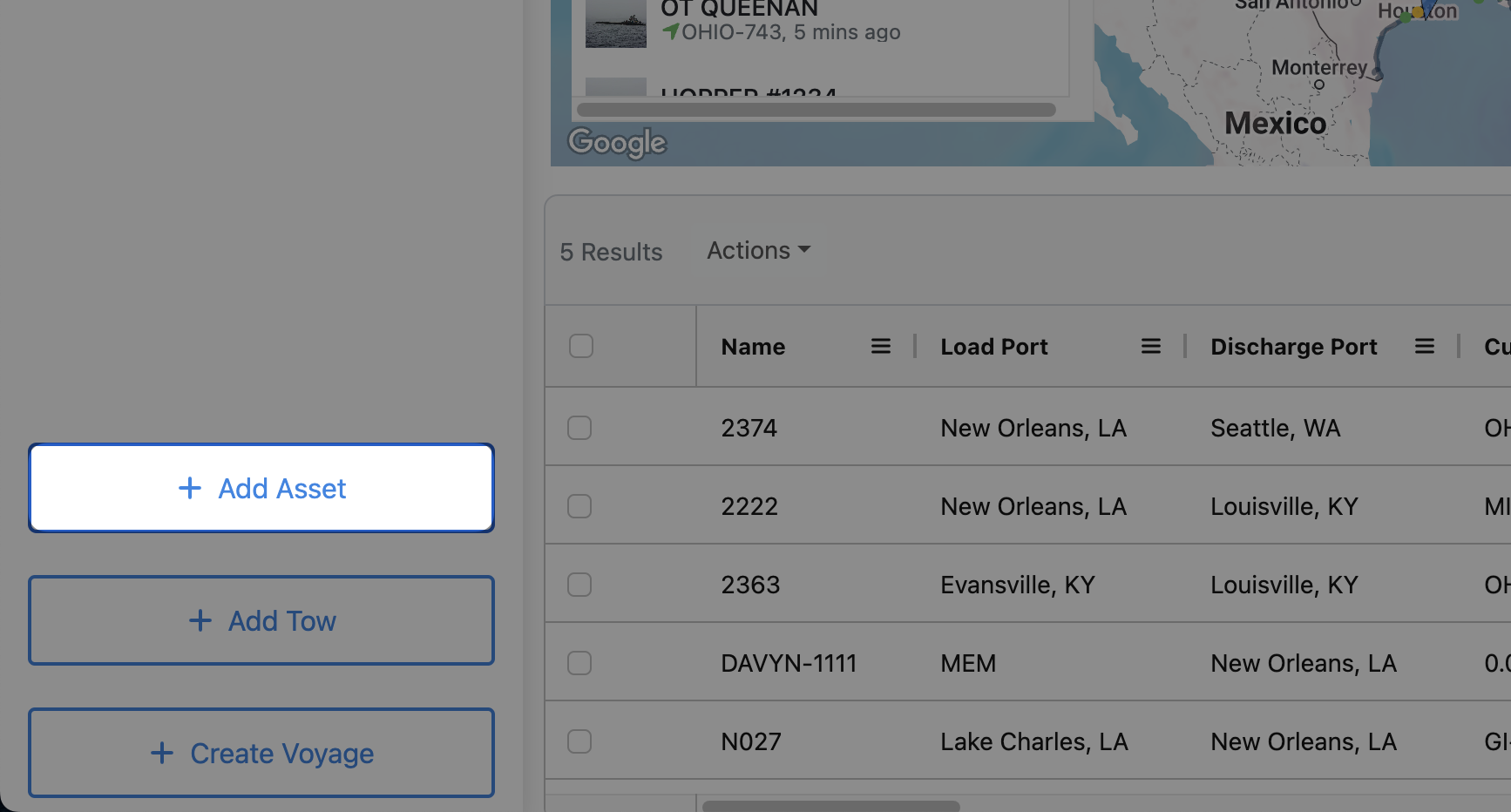
Click on “Add Asset”
This button appears in the bottom-left corner of your screen.
If your sidebar is collapsed, the button will appear as a single letter “A” — expand the sidebar to see the full label.
Search for Your Asset
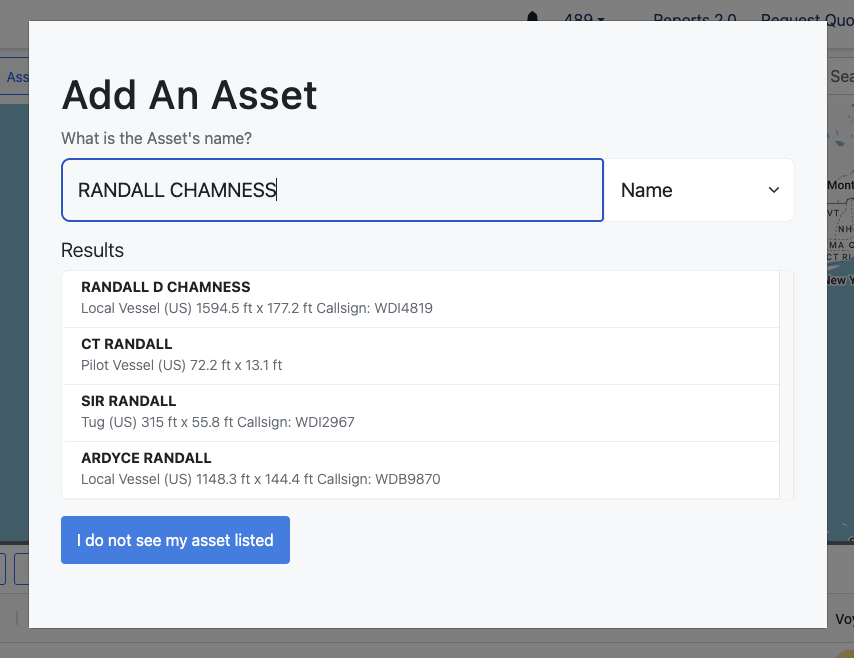
We will automatically pull information on the vessel or tug if available.
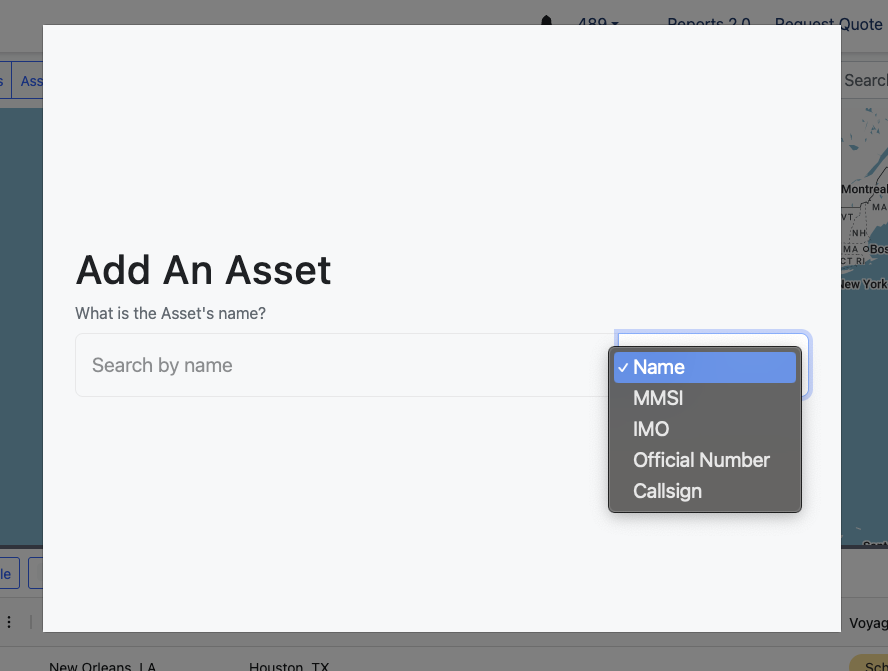
You can search by Name, MMSI, IMO, Official Number, or Callsign.
If you’re adding a barge or your asset isn’t listed, click “I do not see my asset listed”, then input the required details manually.
Enter Asset Specifications
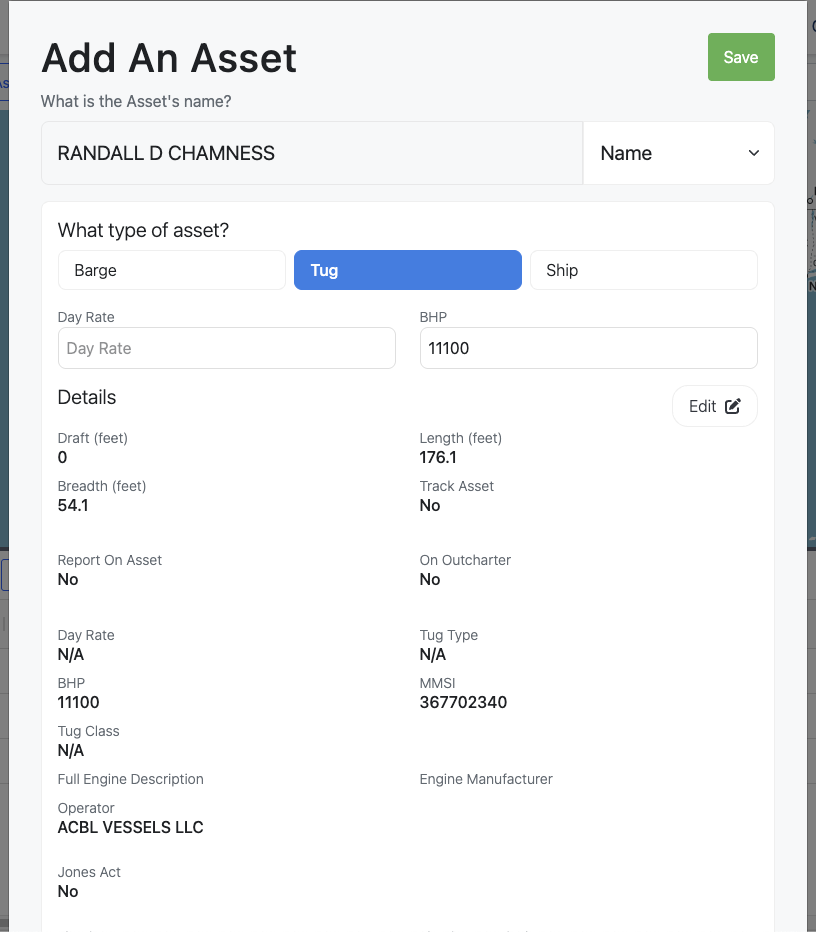
Depending on the asset type (Tug, Barge, or Ship), required information may vary.
Example: When adding a Tug, the system uses BHP (Brake Horsepower) to calculate fuel consumption (gallons/day) and speed assumptions.
All values can be manually adjusted by clicking Edit.
Add any additional information you have — this improves the accuracy of voyage estimation and financial forecasting.
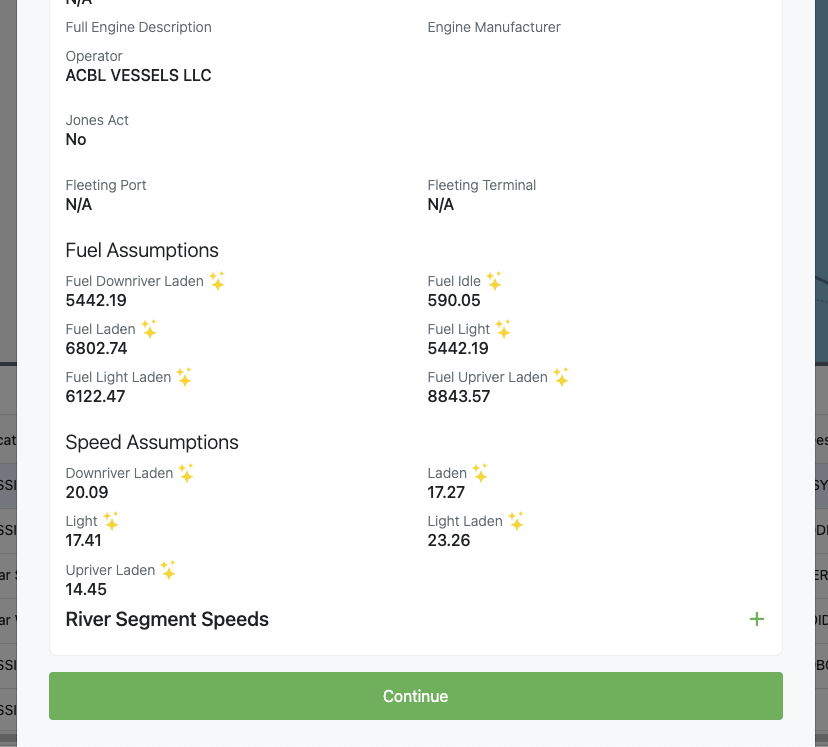
Click “Continue” or “Save”
Your new asset will be saved and visible on your Voyage Dashboard.
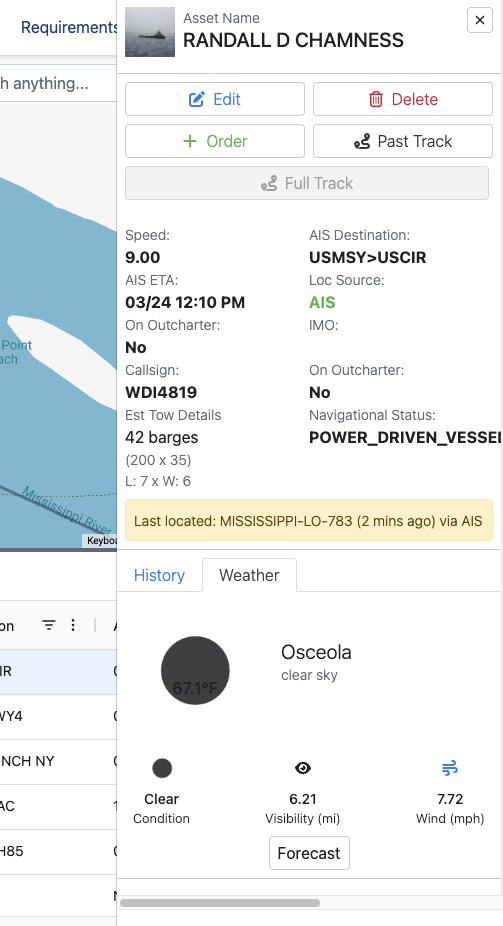
Selecting the asset lets you view weather conditions, adjust assumptions, or manage related data.
Deleting an Asset
Select the asset from your Voyage Dashboard.
Click the Delete button in the sidebar.
Once deleted, the asset will no longer appear in your dashboard or reporting views.