Voyage Route Tab
Last updated: November 6, 2025
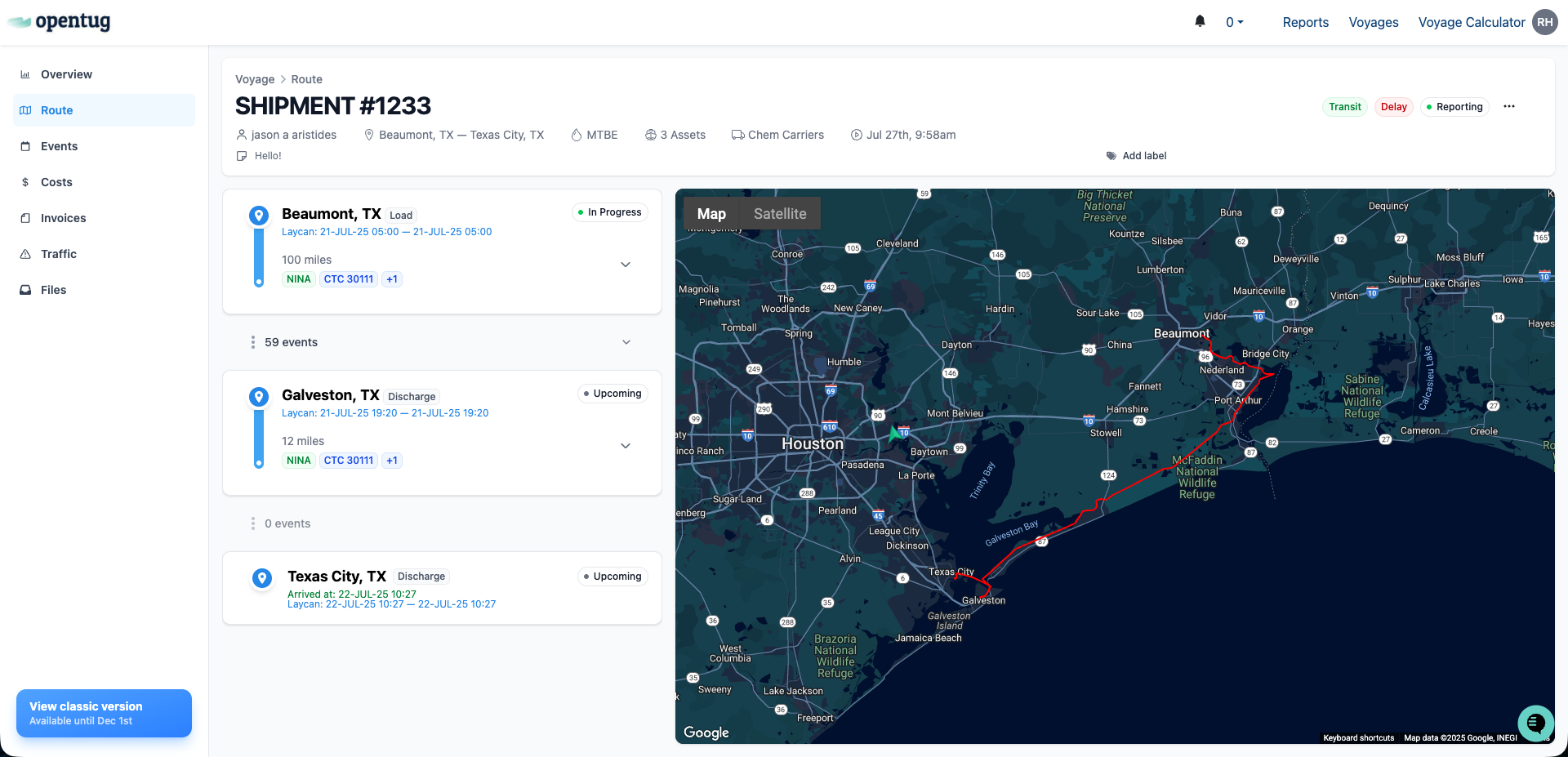
The Route tab provides a visual and structured view of a voyage’s route, showing each leg of the journey from origin to destination. Users can review port activity, vessel and barge details, voyage progress, and live asset positions all in one place.
Overview
Each leg represents a distinct segment of the voyage, typically defined by a Load, Discharge, or Transit location.
The left side of the page lists all voyage legs in order, while the right side features a live, interactive map showing the associated route and assets.
This layout allows users to quickly understand where assets are located and what stage of the voyage they’re currently in.
Port Cards
Each port card summarizes key operational details for that leg of the voyage, including:
Port Name and Type (Load, Discharge, or Intermediate)
Laycan Window – scheduled operation timeframe
Distance to Next Port – measured in miles along the route
Assigned Assets – tug and barge(s) involved in that leg
Leg Status – displays whether the leg is Upcoming, In Progress, or Completed
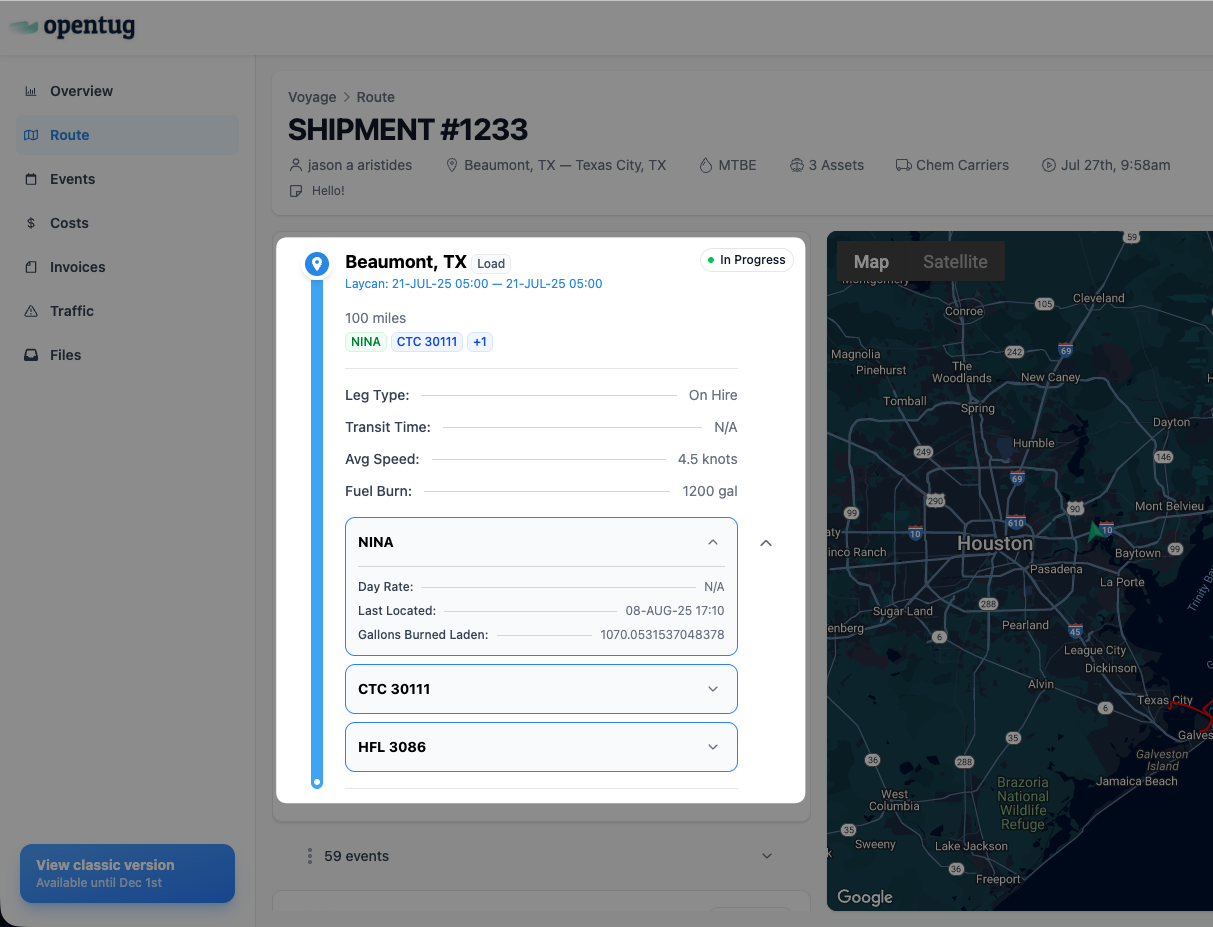
When expanded, additional performance and operational metrics appear, such as:
Leg Type (On Hire, Transit, Storage, etc.)
Transit Time
Average Speed
Fuel Burn
Asset Details – including last reported location, day rate, and fuel metrics
Interactive Map
The interactive map provides a visual overlay of the voyage’s route and real-time asset locations.
It dynamically responds to user interaction:
Hovering over a leg card highlights the corresponding route section in yellow, helping users visually identify that segment on the map.
Clicking a leg card will fix the route highlight in green, focusing the map view on that specific portion of the voyage.
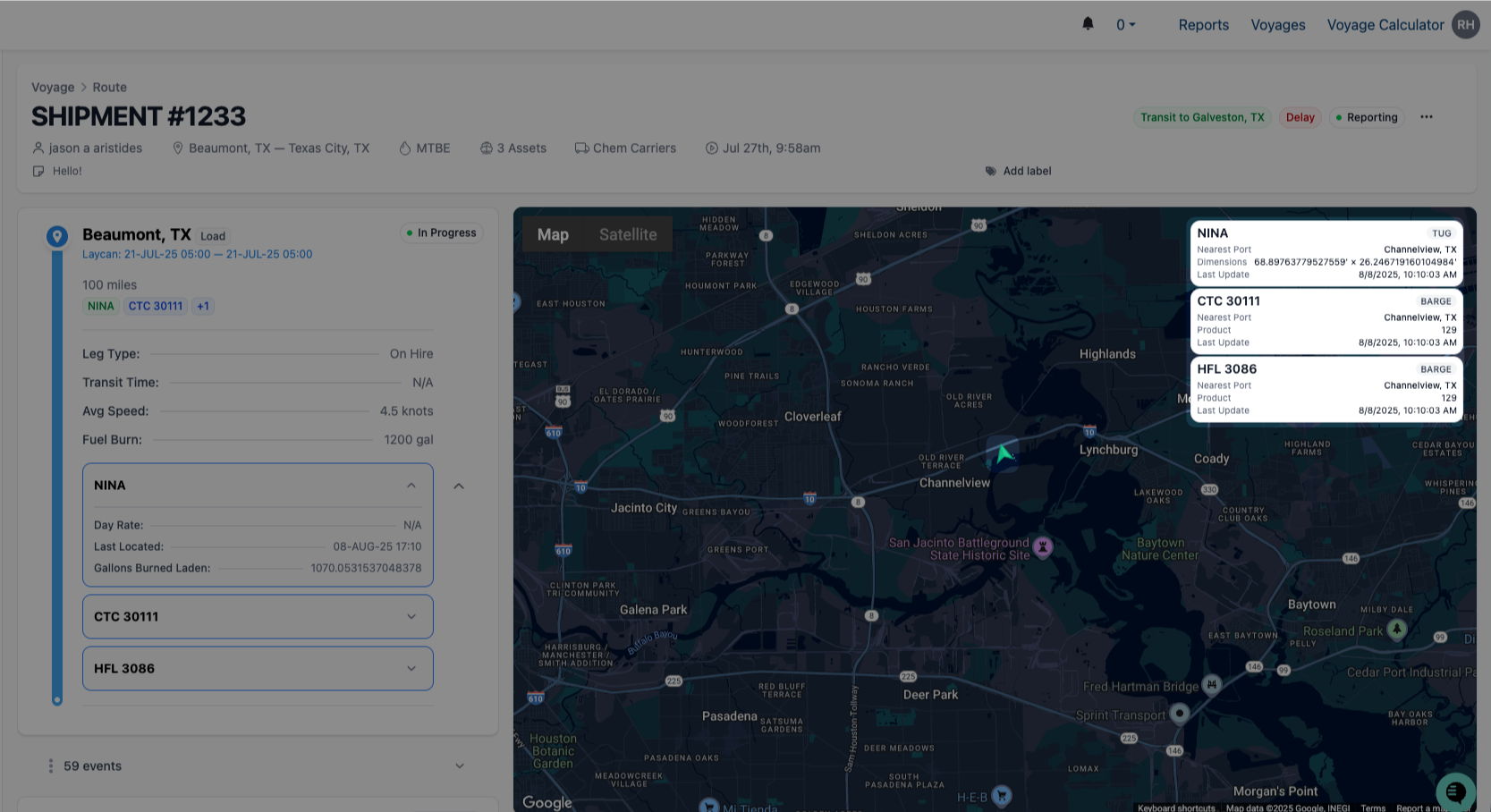
Selecting asset cards (e.g., tugs or barges) will plot their current positions on the map with labeled markers.
When a marker is hovered over, a small info card appears in the top-right corner of the map showing:
Asset Name and Type (Tug or Barge)
Nearest Port
Product
Last Update Timestamp
This makes it easy to confirm which assets are associated with the selected leg and where they are currently positioned.
Event History
Below each leg card is a chronological list of voyage events (e.g., Load Started, Load Ended, Discharge Started, Discharge Ended).
These are automatically pulled from the Events tab, allowing users to see detailed port activity without switching pages.