Saving a Custom Filter
Last updated: October 27, 2025
Filters help you organize the Voyage Dashboard so you can focus on the specific data that matters most to your workflow. You can create and save filters for Voyages, Tows, Trade Lanes, and Assets.
Overview
Filters narrow down the dashboard to show only records that match your selected criteria. Once you’ve configured filters the way you like, you can save them for quick access later, eliminating the need to reapply filters each time you return to the page.
Creating a filter
Click the filter icon (stacked lines) in the header of the column you want to filter.
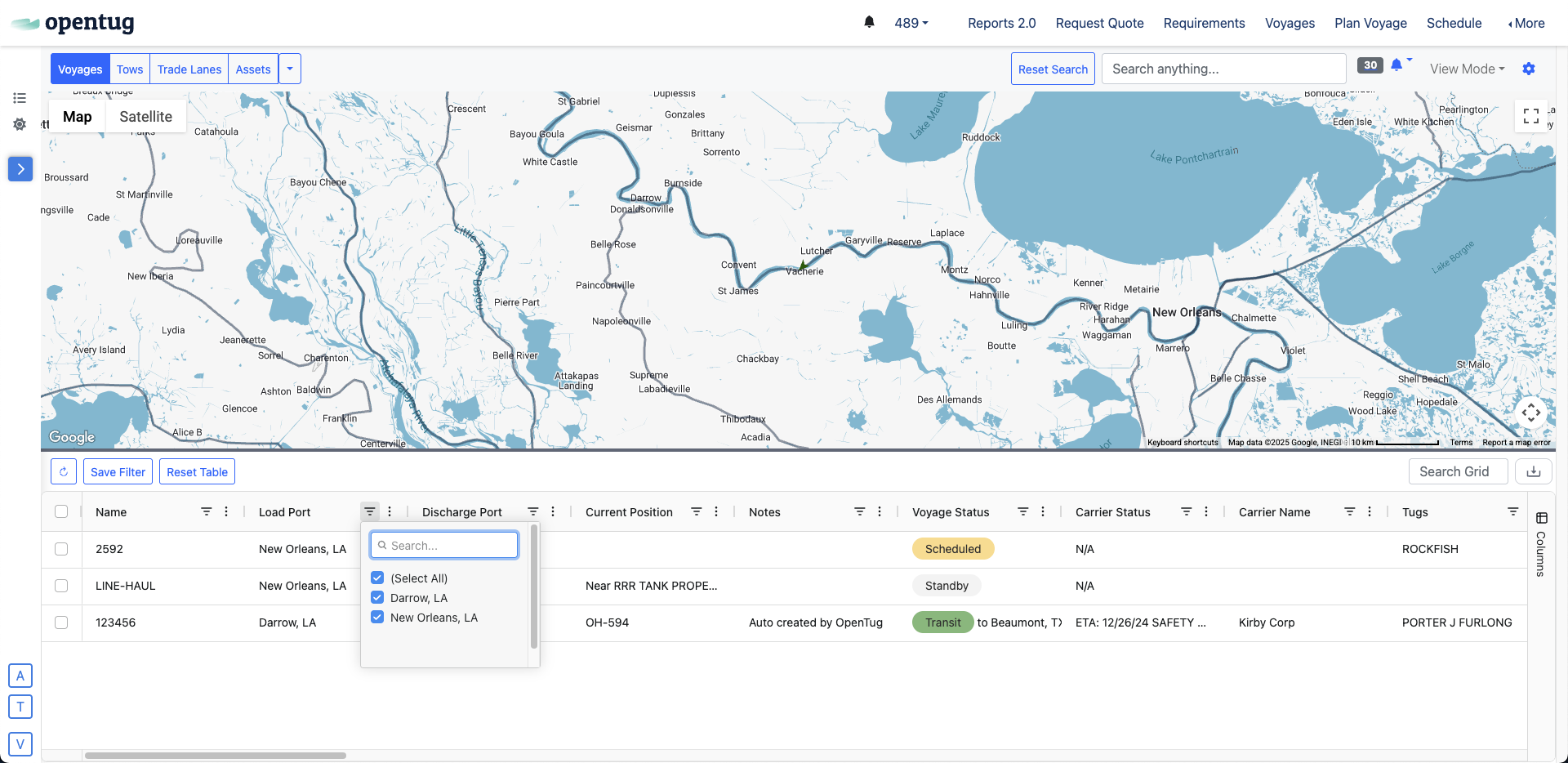
Search or select from the available options in the dropdown menu.
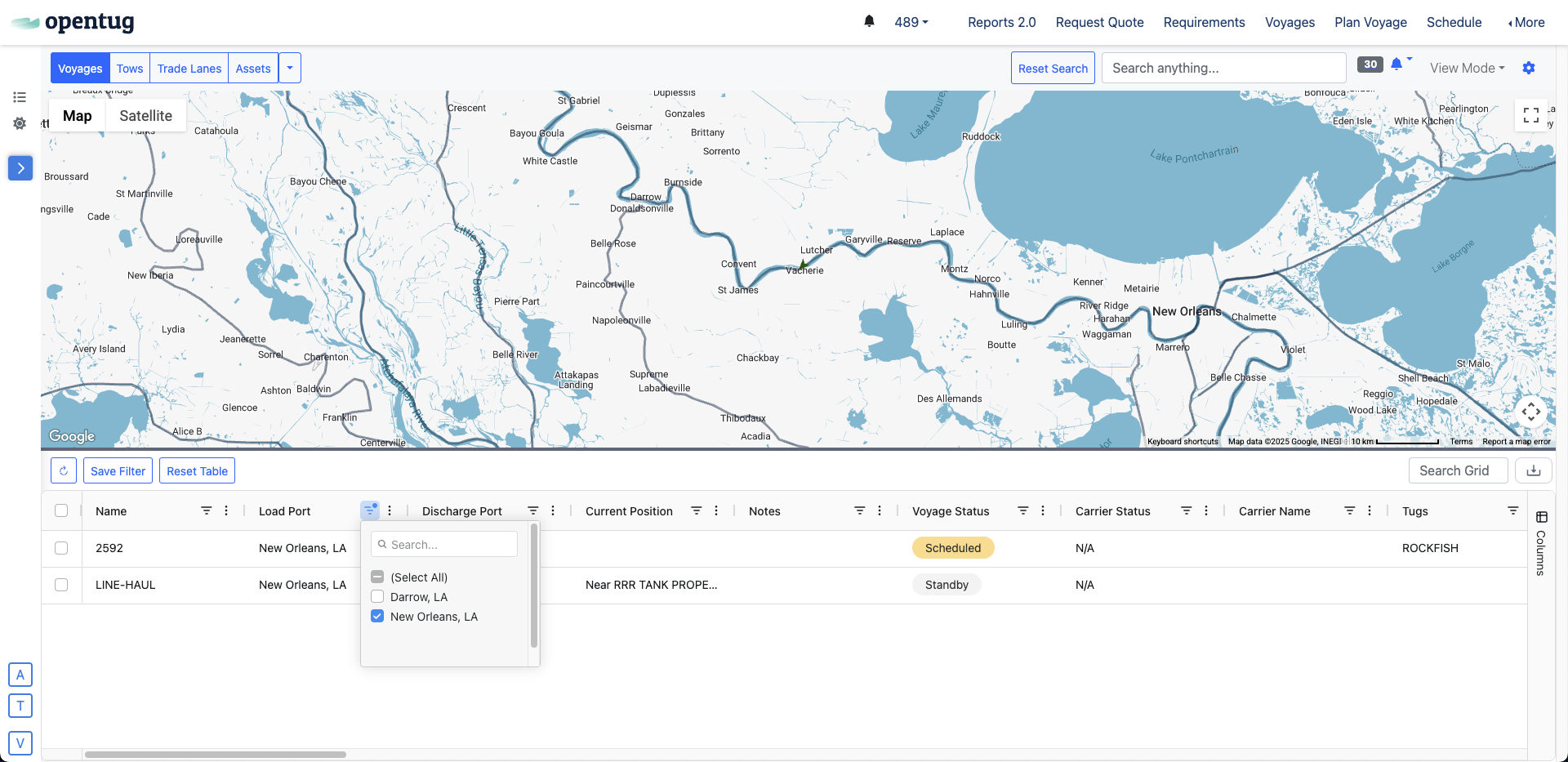
Repeat this process for any additional columns you’d like to include.
The dashboard will automatically update to reflect your selected filters.
Tip: You can combine multiple column filters to build complex or detailed filtered views (for example, “Voyages – Status = Scheduled” and “Load Port = Houston, TX”).
Saving a Filter
Once you’ve configured your filters:
Click Save Filter at the top of the Voyage Dashboard.
Enter a name for your saved filter (for example, “Houston Scheduled Voyages” or “Active Assets”).
Click Save.
Your saved filter will now appear above the grid for quick access at any time.
Using Saved Filters
Click on a saved filter name above the grid to instantly load your filtered view.
Saved filters retain all column and filter settings until you modify or delete them.
To reset the dashboard, click Reset Table to clear all applied filters.
Deleting a Filter
If you no longer need a saved filter:
Locate the filter name above the grid.
Click the X icon next to it.
The filter will be removed from your saved list.
Tips for Managing Filters
Use clear, descriptive names for filters so team members can identify their purpose easily.
Save filters for recurring tasks such as Scheduled Voyages, In Transit Assets, or Awaiting Discharge.
Combine filters with custom Views for a personalized dashboard experience.