Dashboard Views Guide
Last updated: November 21, 2025
Views in OpenTug let you save, switch, and manage preset table configurations including columns and groupings so you can quickly toggle between different operational perspectives. See our video walkthrough here.
Where to Find Views
Go to the Voyage Dashboard where the table or grid is displayed.
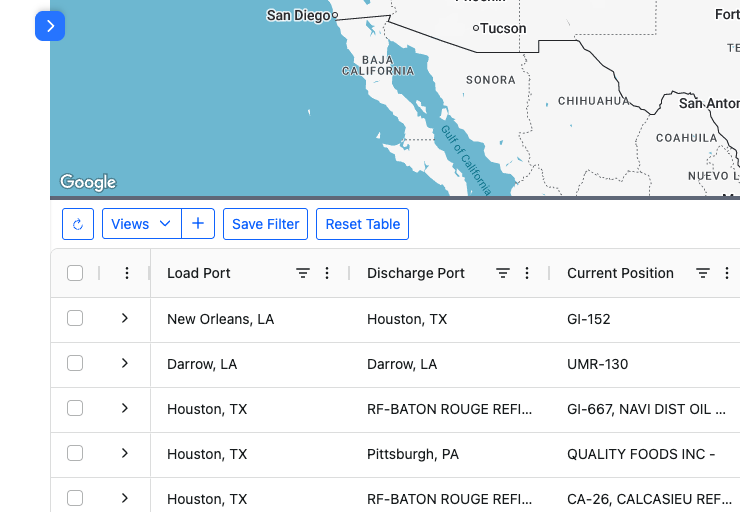
At the top of the table, you’ll see a View's dropdown and + symbol.
Click the + to create a new View or select the dropdown to view existing views.
Creating a New View
Configure the Table
Show or hide columns using the Columns menu on the right.
Open “Save View” Dialog
Click the “+” (Add View) option from the View Mode dropdown.
A dialog opens prompting for the view name.
Name and Save
Give your view a clear name such as
Operational VieworEvents View.Click Save View.
The view is now available from the View Mode dropdown.
Using and Managing Views
Switch Between Views
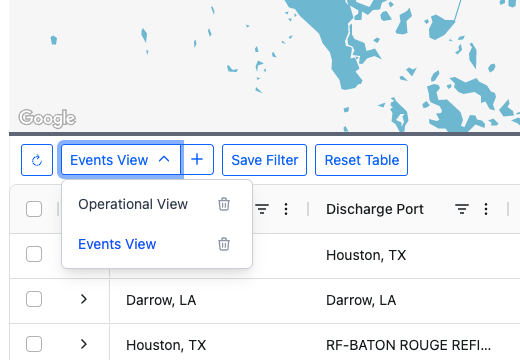
Click the View Mode dropdown and select one of your saved views.
The table reloads with that view’s layout, filters, and sorting.
Update or Overwrite a View
Make changes to columns, filters, or sorting.
Click the Save icon (💾) next to the current view name.
This overwrites the existing view with your latest settings.
Delete a View
Open the View Mode dropdown.
Hover over the view name you want to remove.
Click the trash or delete icon that appears (if available).
Confirm deletion.
Supported Use Cases and Best Practices
View Name | Use Case | Recommended Key Columns |
Operational View | Daily tracking of voyages | Load Port, Discharge Port, Voyage Status, Charterer, ETA |
Events View | Audit and event review | Actual Load Arrival, Tendered To Discharge, Called To Dock |
Storage View | Monitoring barges in storage | Current Position, Load State, On Storage Date, ETA |
Set a default view: Choose the view you rely on most like Operational View.
Test after saving: After creating or updating a view, switch back to it and confirm it behaves as expected.
Deletion: Deleting a view cannot be undone, so ensure no one is actively using it before removal.