Creating and Managing Tows
Last updated: October 28, 2025
Tows in OpenTug represent contracts or groupings of vessels used to transport barges along a waterway. They help you plan, organize, and track multiple barges and towboats together as a single operational unit.
What is a tow?
A tow is a contract between a customer and a carrier, typically including a towboat pushing or pulling multiple barges along a waterway. The number of barges can vary.
The number of barges can vary, and each tow can have unique rates, timing, and operational details.
Tows are especially useful for:
Managing recurring voyages or contracted jobs
Storing sets of barges and associated towboats
Reducing manual setup time for voyage planning
Automatically creating follow-up jobs for recurring routes
Creating a Tow
Tows can be created directly from the Voyage Dashboard or when Planning a Voyage.
Step 1: Add a Tow
From the Voyages page, select Tows → Add Tow or click Add Tow when planning a voyage.
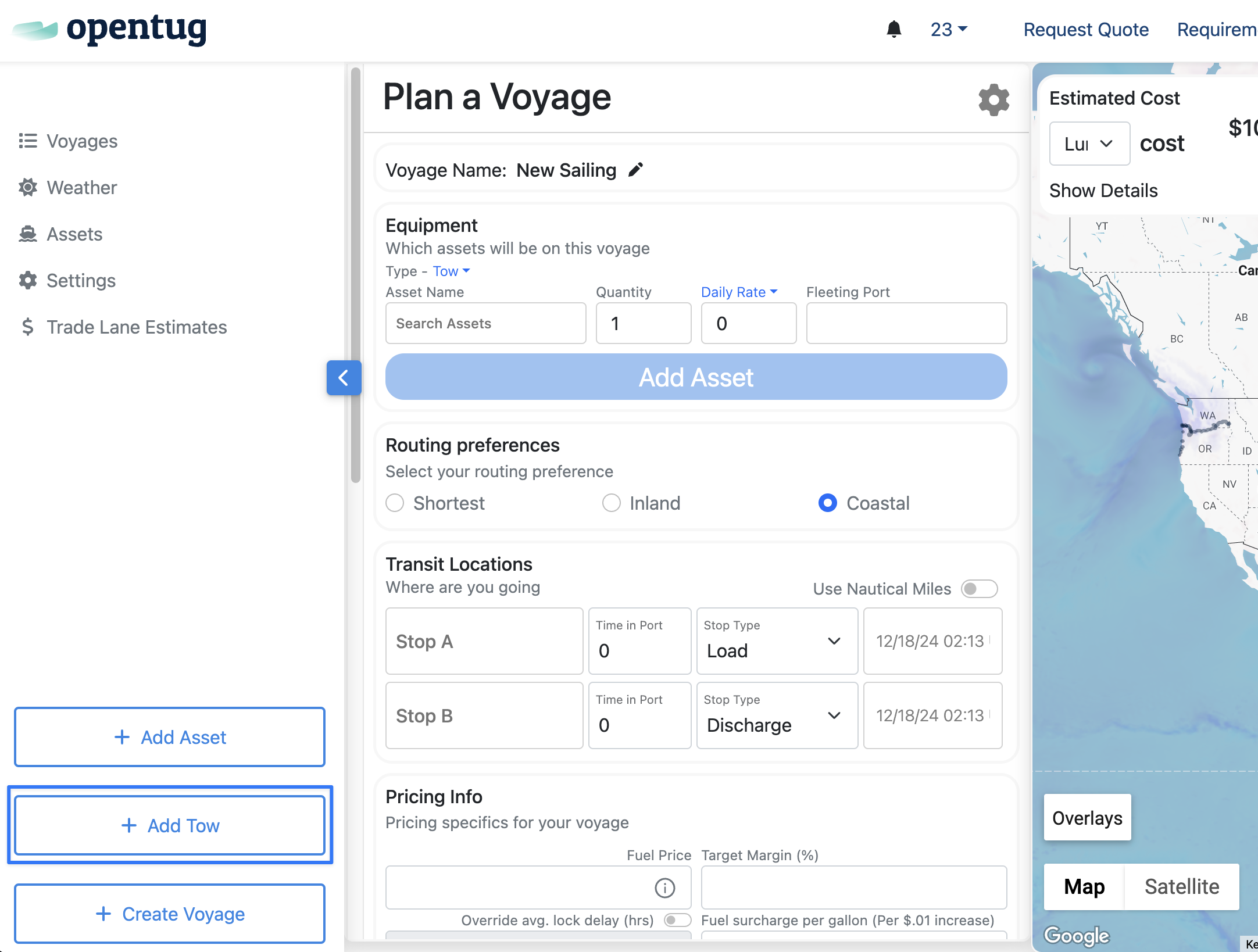
Step 2: Enter Tow Information
Field | Description |
Fleeting Port | The staging or storage location for barges. |
Barge Capacity | Total cargo or volume capacity of the tow. |
Day Rate | Contracted daily rate for the tow or tug. |
Assets | Include barges and tugboats that make up the tow. |
Tug Boat | Select the assigned tug asset. |
Barges | Choose one or more barge assets. |
Customer | The customer associated with this tow contract. |
Carrier | The carrier responsible for operating the tow. |
Start Time / End Time | Planned operational timeframe. |
Product Notes | Cargo details or special instructions. |
Additional Notes | Internal notes or operational context. |
Contracted Number of Voyages | Number of voyages included in the contract. |
Number of Voyages Nominated | Number of voyages assigned so far. |
Linked Voyages | Reference to associated voyages. |
Sequential vs Non-Sequential | Define if voyages occur one after another or in parallel. |
Tracking | Determine whether barges are tracked together or individually. |
Contracted Tug Day Rate | Agreed daily rate for the tug. |
Contracted Barge Day Rate | Agreed daily rate for the barges. |
Step 3: Attach Assets
Click Attach Asset to select tug and barge assets from your saved list.
Here you can:
Adjust the Day Rate for each asset
Set Loading and Unloading Hours
Specify Fleeting Port and Terminal details
Once your barges and tug are added, you can include additional properties as needed such as customer, carrier, or notes.
Step 4: Save the Tow
After entering all relevant details:
Add a Tow Name (for example, “Kirby Gulf Run” or “FSS Houston Tow”).
Click Save to finalize.
Your tow will now be available for use when planning future voyages.
Managing Existing Tows
To view or modify existing tows:
Navigate to the Voyage Dashboard.
Click Tows to open the list of saved tows.
Right-click or select a tow to view details and make updates.
From here you can:
Edit tow details such as assets, rates, or timing
Add or remove barges
Link additional voyages
Deactivate or delete the tow if no longer needed
Best Practices
Use clear and consistent naming conventions for tows (for example, Carrier – Region – Tug Name).
Regularly update Day Rates to maintain accurate reporting.
Use Linked Voyages to track job progress from start to finish.
For recurring contracts, set tows as Sequential to auto-generate the next voyage when one completes.