Viewing Inbound Emails
Last updated: July 8, 2026
The Emails page shows every inbound email that OpenTug is ingesting into your environment. This is the primary way emailed voyage orders, traffic reports, invoices, and rate information get turned into structured data. It's a good first place to check whenever data looks missing, wrong, or hasn't shown up on a voyage yet.
This article covers how to navigate to the Emails page, how to read the email list, how to review the data extracted from an individual email, and how to reprocess an email if needed.
What the Emails page is for
OpenTug automatically ingests emails sent to your dedicated inbox and extracts structured data from them, including:
Voyage Orders – new voyage or tow orders
Voyage Change Requests – revisions to existing orders
Traffic Updates – barge position and event reports
Invoices – billing documents
Vendor Rates – fuel and other vendor rate updates
Each email is automatically matched to the correct voyage, customer, and fields wherever possible, so you can see exactly what data came in and where it landed.
Navigating to the Emails page
From the voyage dashboard left sidebar, click Emails.
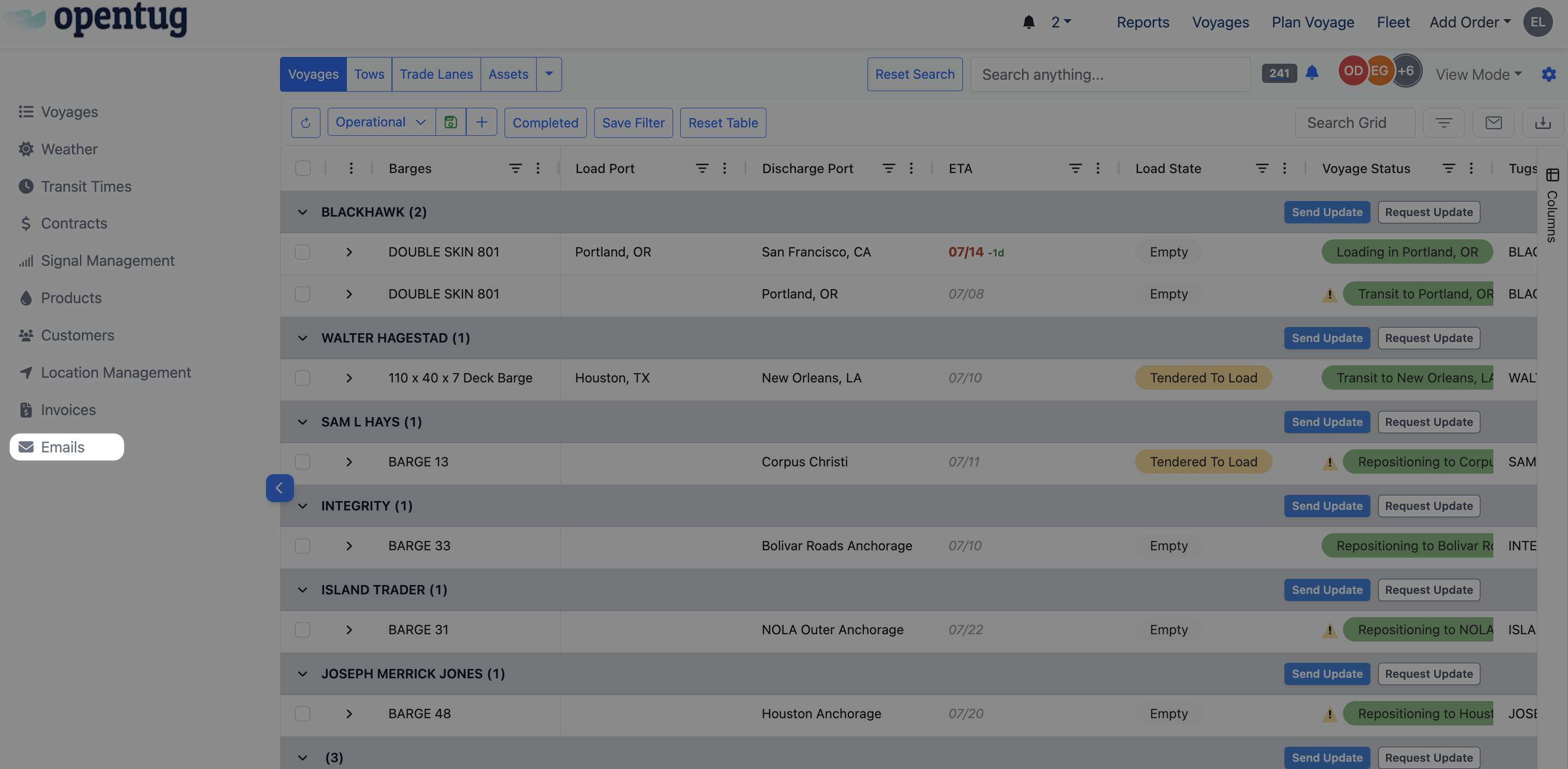
This opens the full list of inbound emails for your environment.
Understanding the Emails list
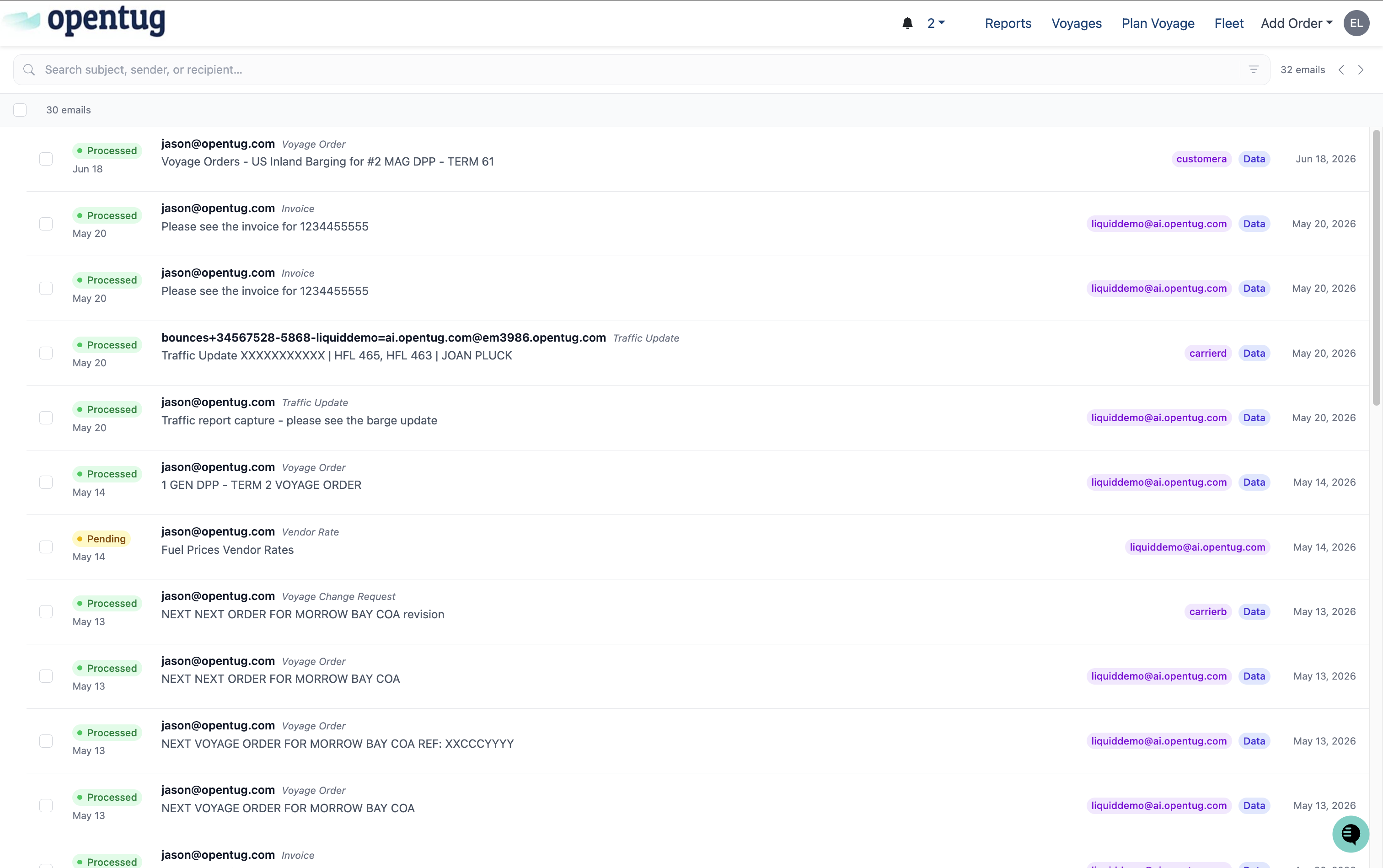
Each row in the list represents one inbound email, and includes:
Status –
Processed(green) means the email was successfully ingested and matched;Pending(yellow) means it's still being processed or needs review.Date – when the email was received.
Sender – the email address the message came from.
Type – the type of email detected (Voyage Order, Invoice, Traffic Update, Vendor Rate, Voyage Change Request, etc.).
Subject – the original email subject line.
Badges – on the right, you'll see a
Processing Settingand aDatatag indicating structured data was extracted.
You can use the search bar at the top to search by subject, sender, or recipient, and the total email count is shown at the top right.
Reviewing an individual email
Click any email in the list to open its detail view.
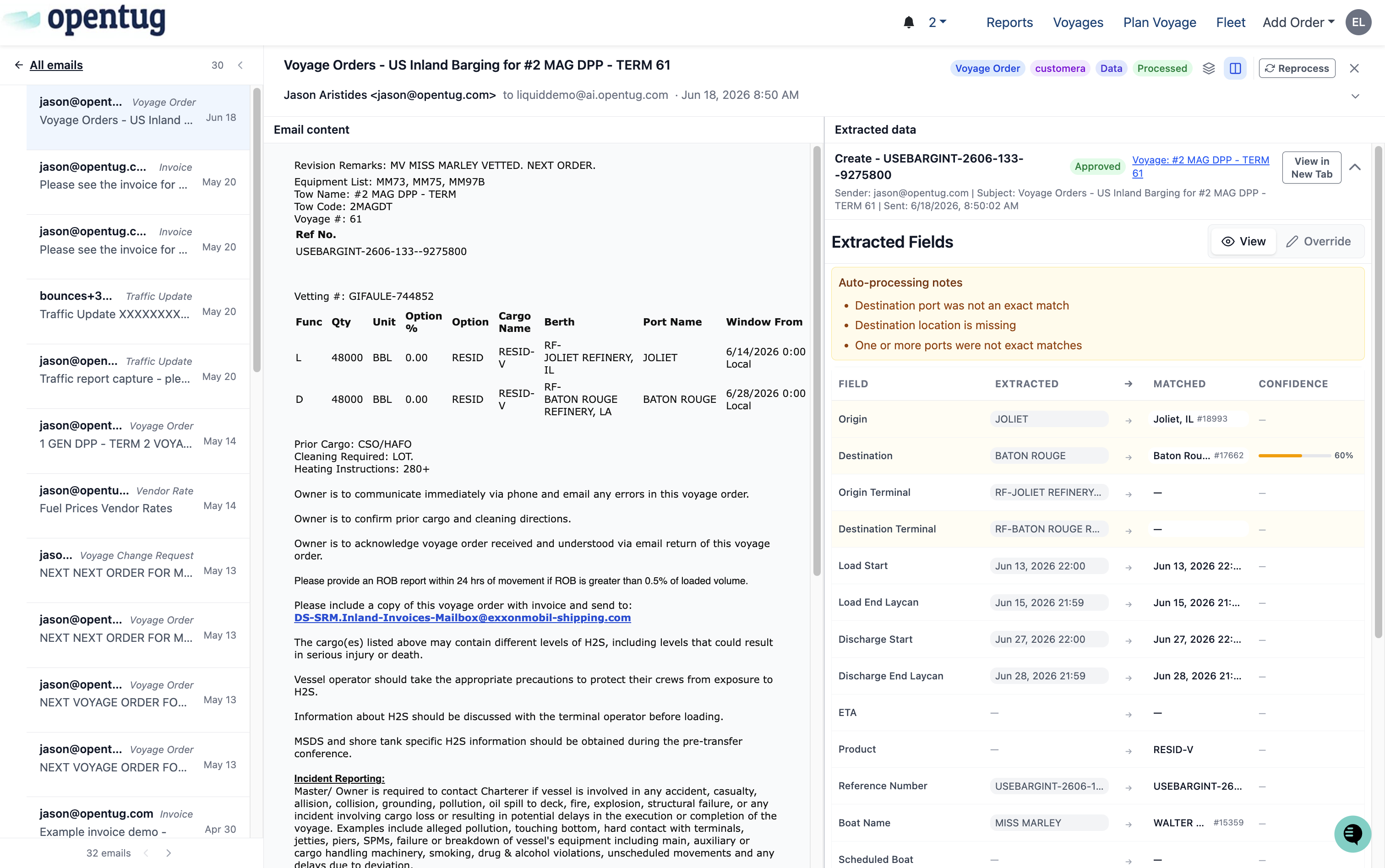
The detail view is split into two panels:
Email content (left) – the original email as it was received, including the full text of the voyage order, traffic report, invoice, or rate sheet.
Extracted data (right) – shows:
The record that was created or updated (e.g., a voyage order), its approval status, and a link to view the linked record in a new tab.
Auto-processing notes — flags for anything that needed extra attention, such as a port that wasn't an exact match or a missing destination location.
Extracted Fields — a field-by-field breakdown showing what was extracted from the email, what it was matched to in the system, and the confidence level of that match.
At the top of the email, you'll also see badges for the email's category, associated customer, and processing status, along with a Reprocess button (see below).
Jumping to the linked voyage
If an email was matched to a voyage, click the voyage link in the Extracted data panel (e.g., Voyage: #2 MAG DPP – TERM 61) to open that voyage's details in a new tab, where you can review its Overview, Route, Events, Costs, Demurrage, Invoices, Traffic, and Files.
Traffic update example
Traffic Update emails work the same way — the Extracted data panel shows origin, destination, product, boat and barge names, and a full list of Reported Events (dock departures, hose on/off, inspections, etc.) pulled from the report.
Invoice example
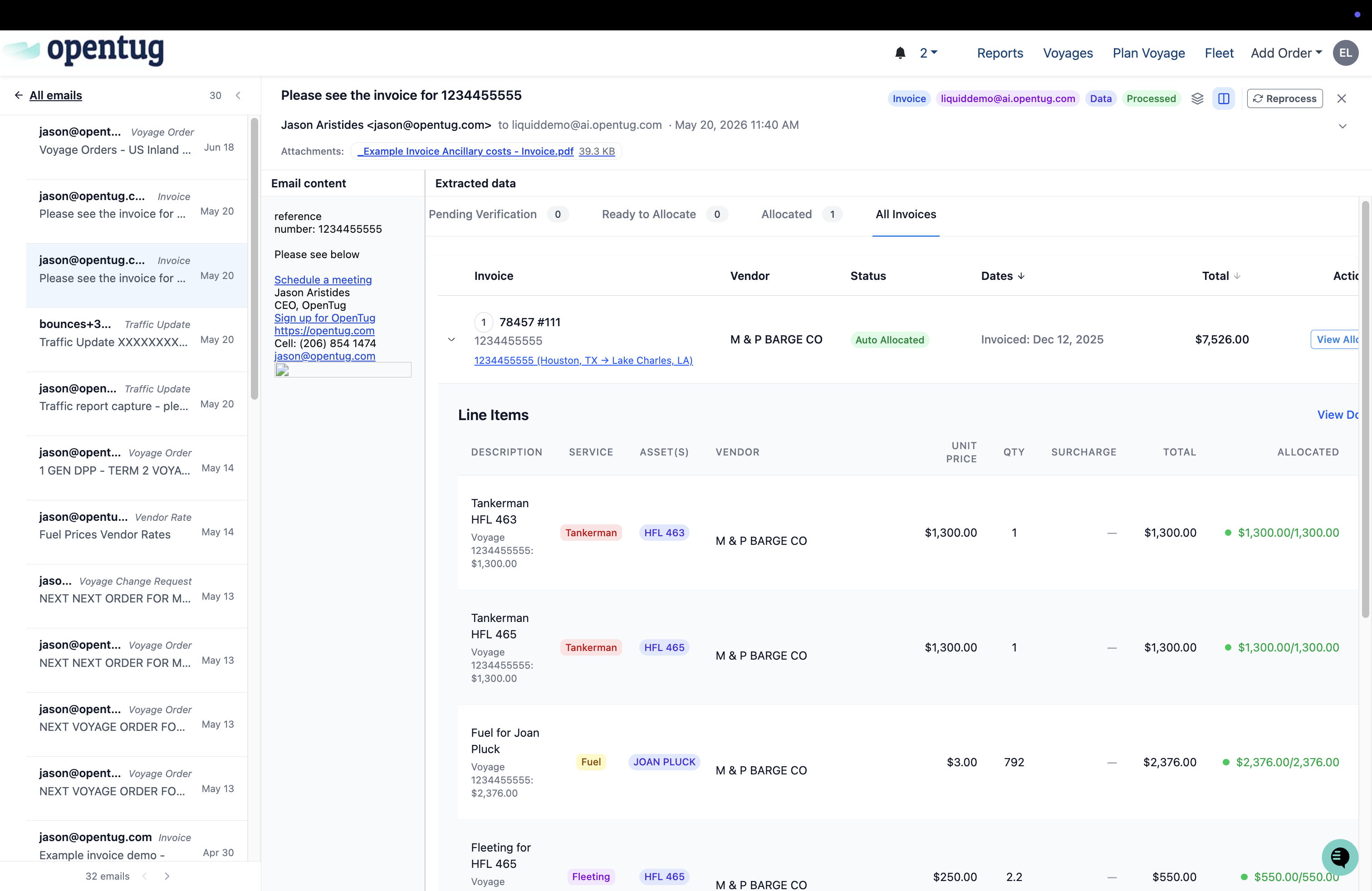
Invoice emails typically arrive with a PDF attachment, shown under Attachments at the top of the email. The Extracted data panel groups invoices into Pending Verification, Ready to Allocate, Allocated, and All Invoices tabs, so you can see where each invoice stands.
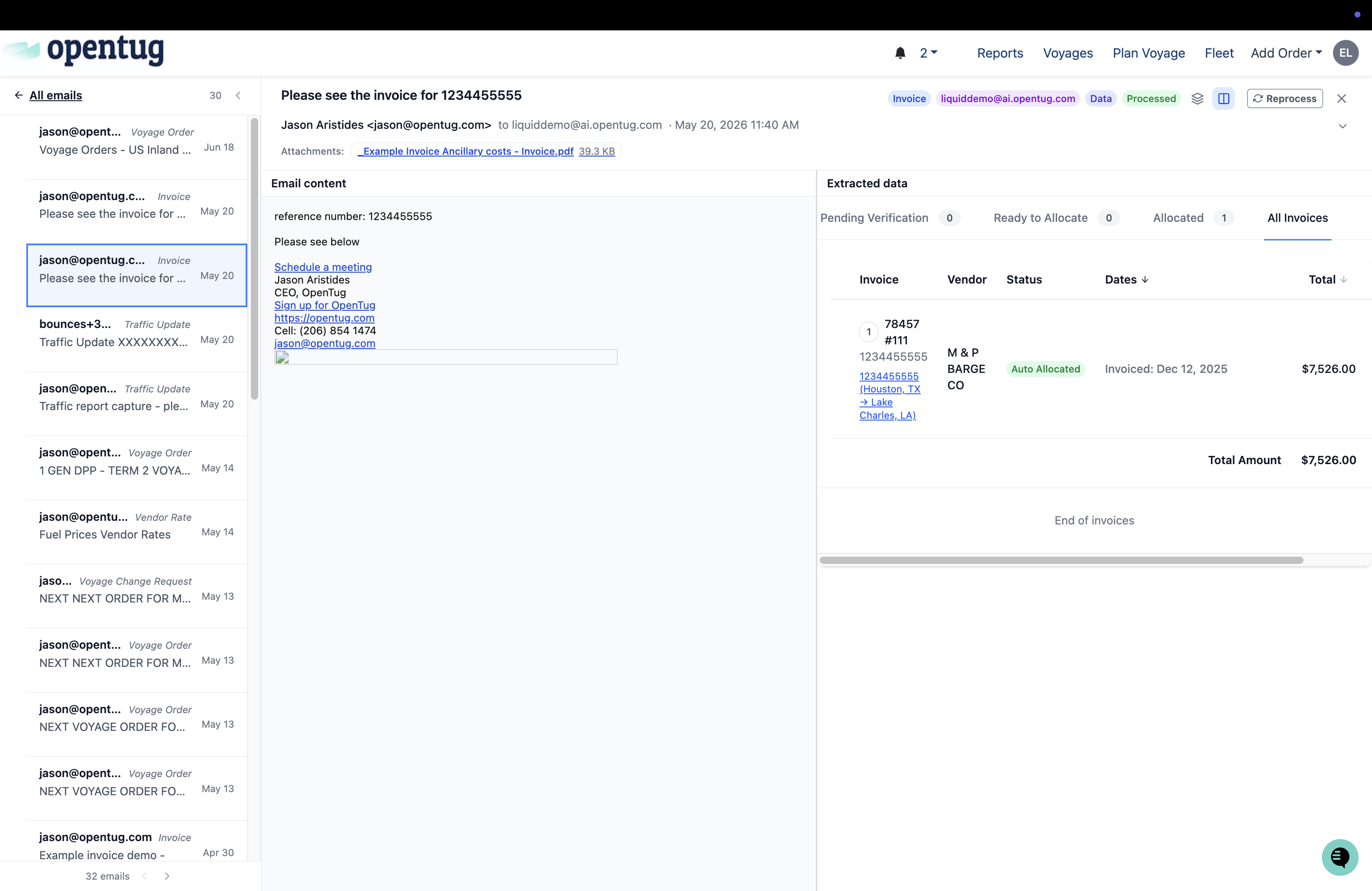
Click a listed invoice to expand its Line Items — each line shows the service type (Tankerman, Fuel, Fleeting, etc.), the asset(s) it applies to, the vendor, unit price, quantity, total, and how much of that line has been allocated. This is where you can confirm the invoice was matched to the correct voyage and that the line-item amounts add up correctly.
Reprocessing an email
If an email's data looks incorrect, incomplete, or wasn't matched properly (for example, after you've corrected an origin/destination match elsewhere in the system), you can have OpenTug re-run extraction on it:
Open the email from the Emails list.
Click Reprocess in the top right of the email detail view.
This re-runs the extraction and matching logic against the current state of your environment's data.
Related tips
If an expected voyage order, traffic update, or invoice isn't showing up on a voyage, check the Emails page first to confirm it was received and see its processing status.
Low-confidence or unmatched fields are called out directly in the Auto-processing notes and in the Confidence column of the Extracted Fields table — these are the first things worth double-checking.
Use Override in the Extracted data panel to manually correct a field's matched value if it is pending.