Voyage Details Overview
Last updated: July 12, 2025
An overview of how to find data on specific voyages, edit their configuration and review reported data.
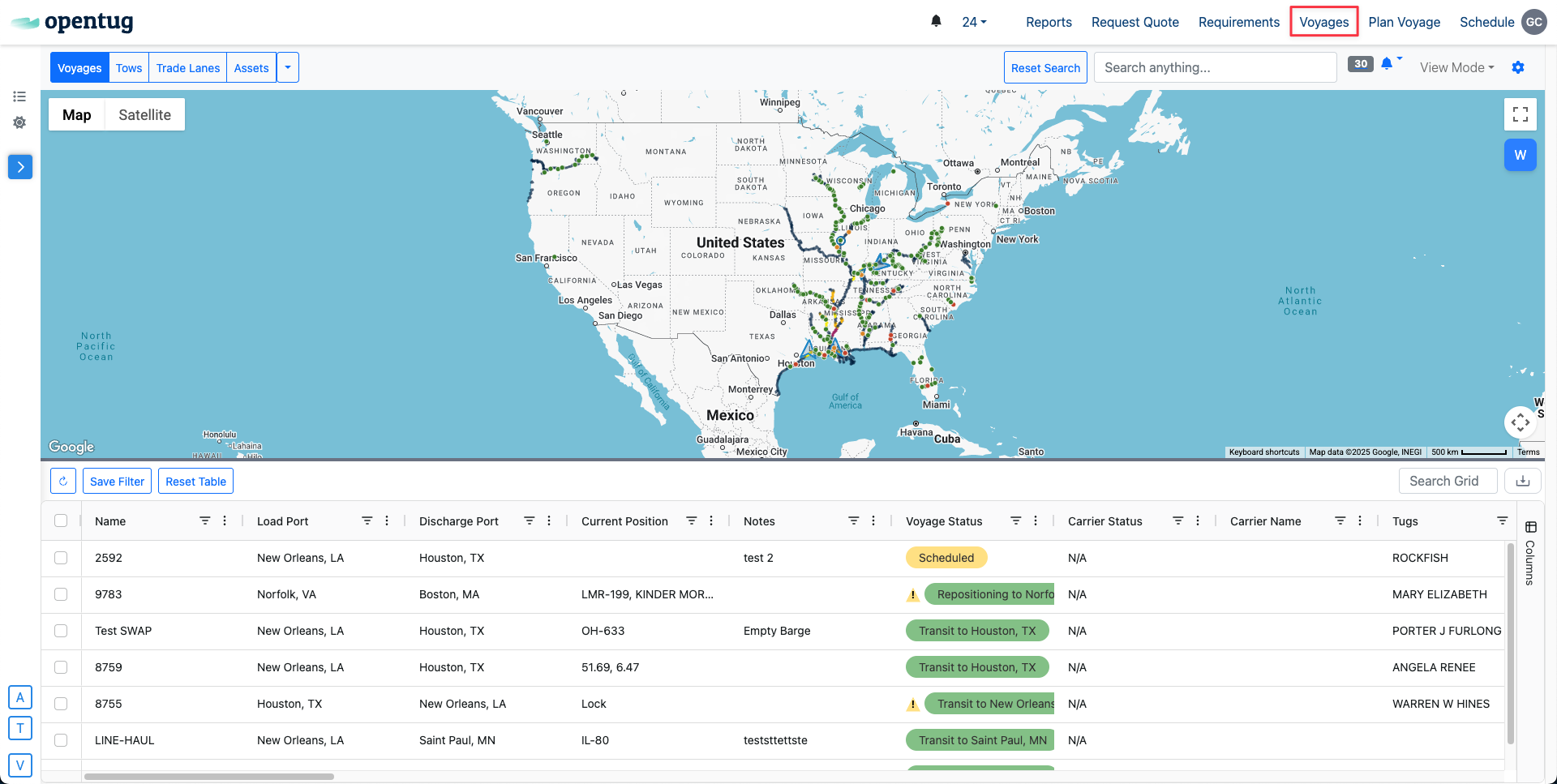
View all Voyages by selecting the "Voyages" tab
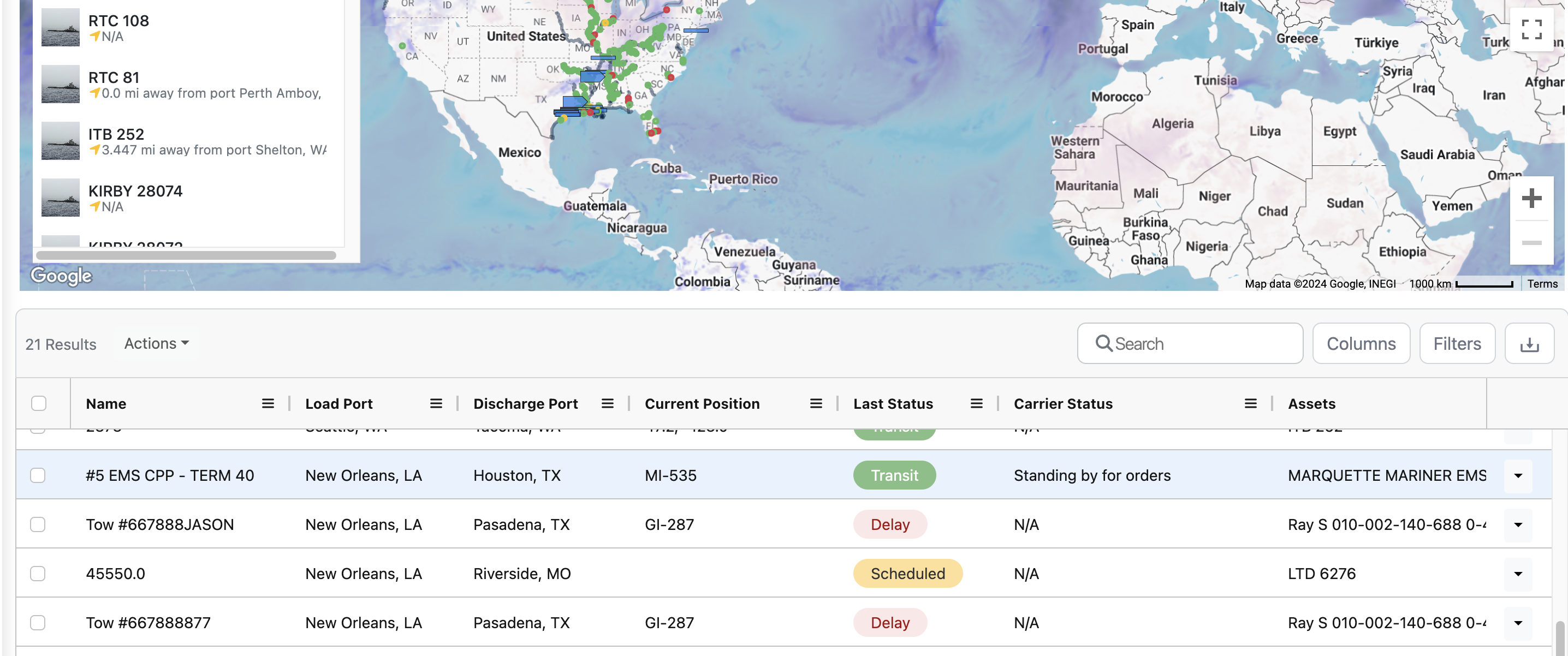
Select the Voyage of choice to view Voyage specific details
See all Voyage details in the sailing page
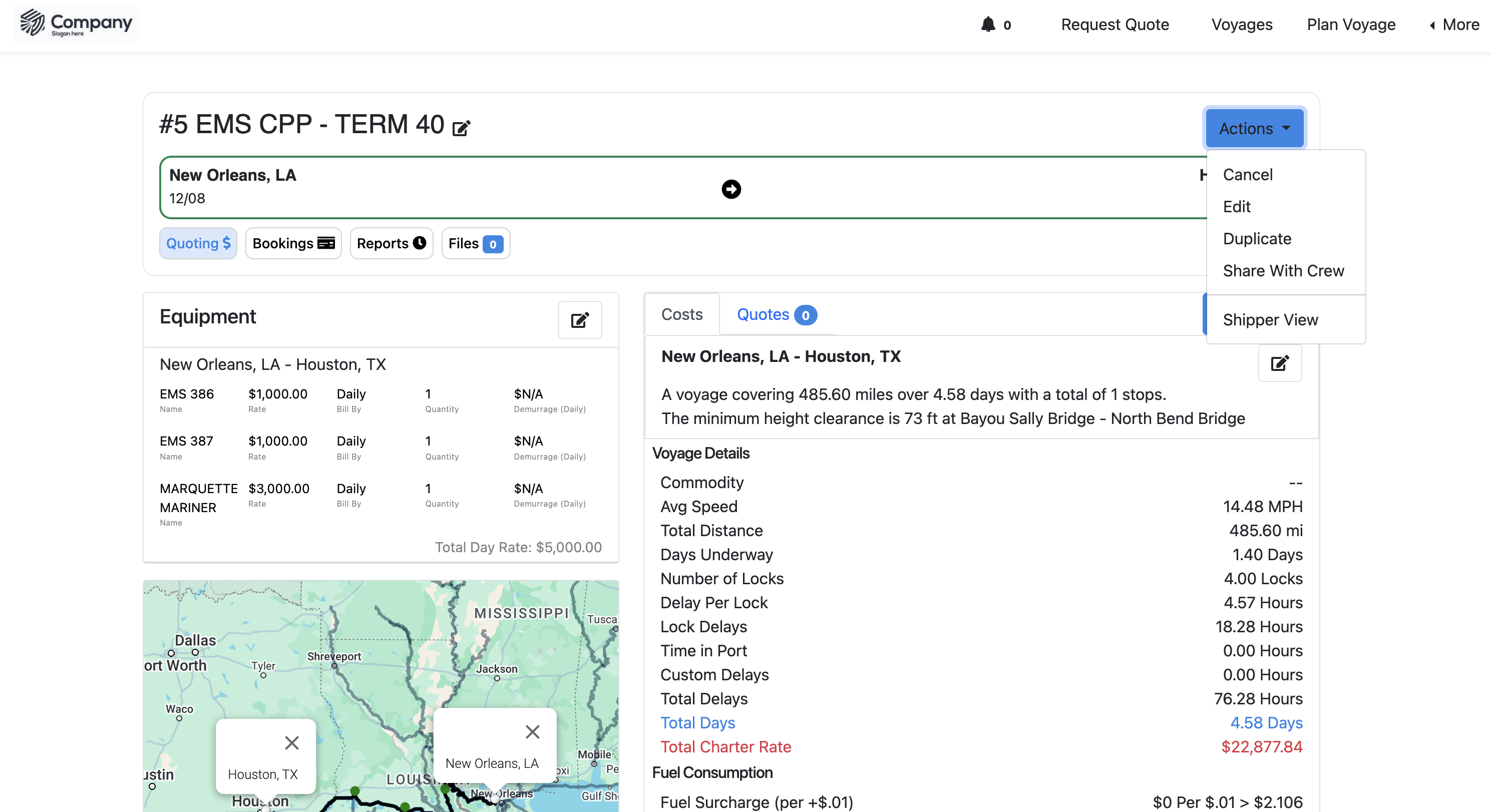
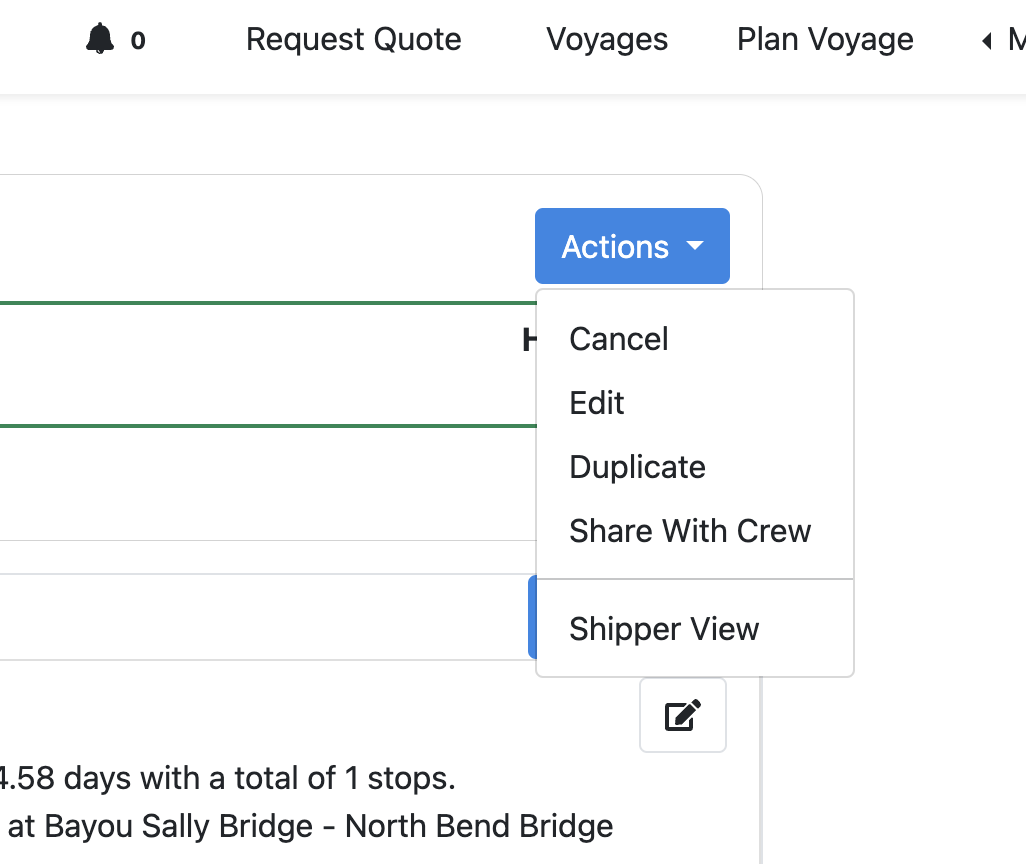
High level controls are in the "Actions" dropdown
Here you can...
Duplicate this Voyage
Share this Voyage with a Customer or Team Member
Edit the Voyage's details
Cancel/Delete this Voyage
When editing the voyage you can...
Adjust the Voyage name
Edit Assets/Equipment attached
Adjust Rates
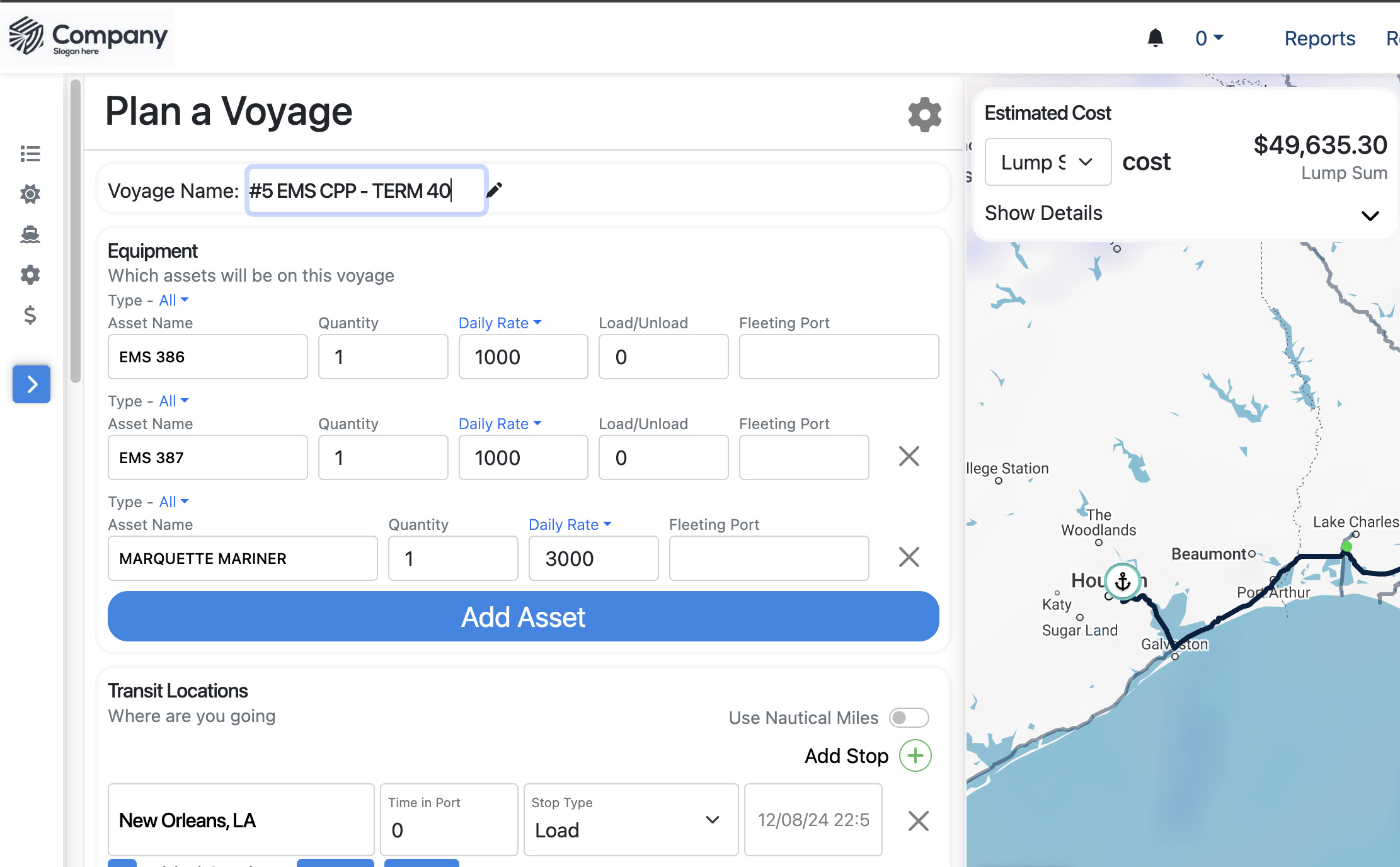
When you are finished making changes, click Plan Voyage, and you will be directed to the Voyage detail page.
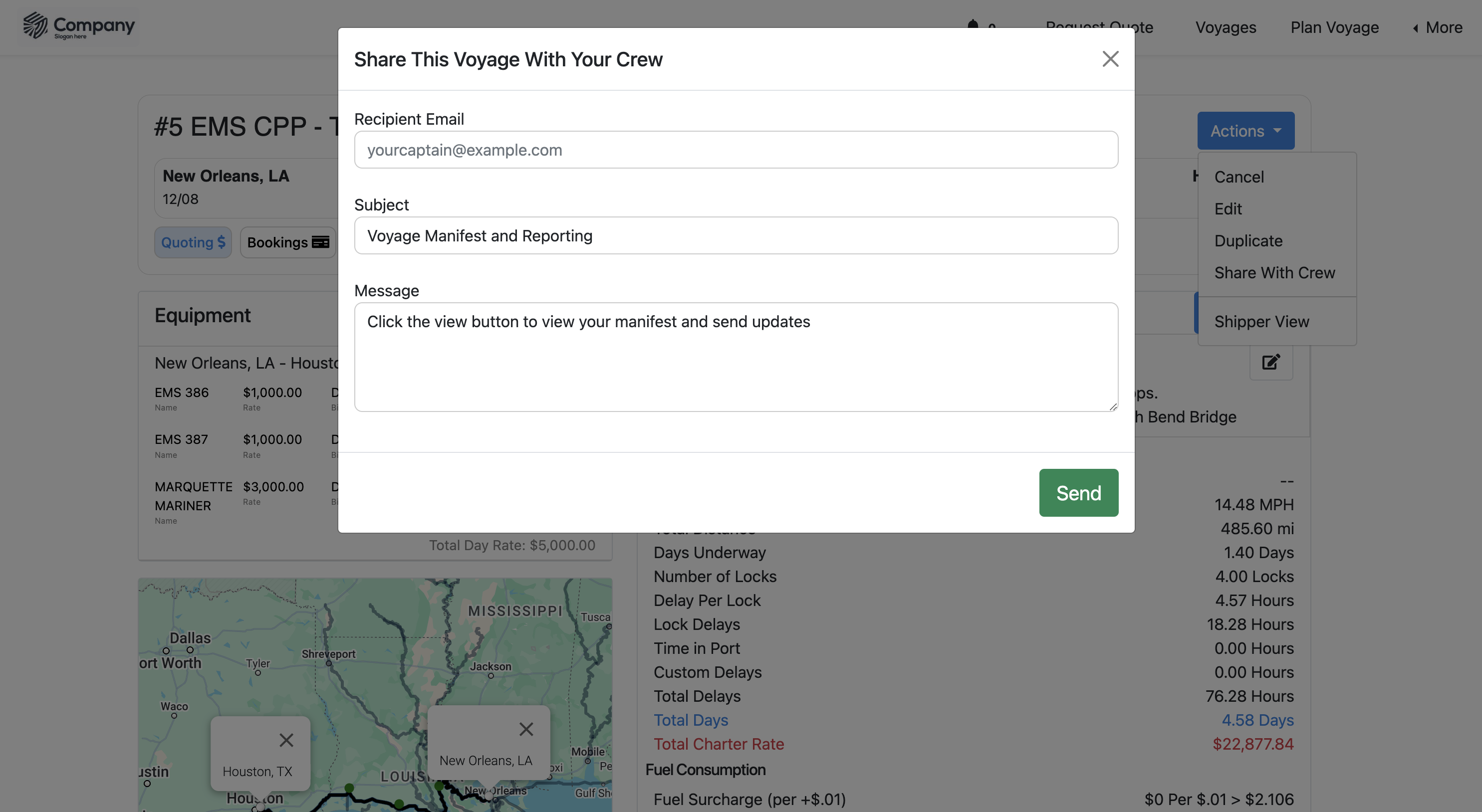
Share Voyage
You can share the details of a Voyage with a team member by clicking the "Share" button in the acton menu.
Create a Quote from a Planned Voyage
To convert a planned voyage into a quote, click the "Share Quote" button on the Voyage detail page.
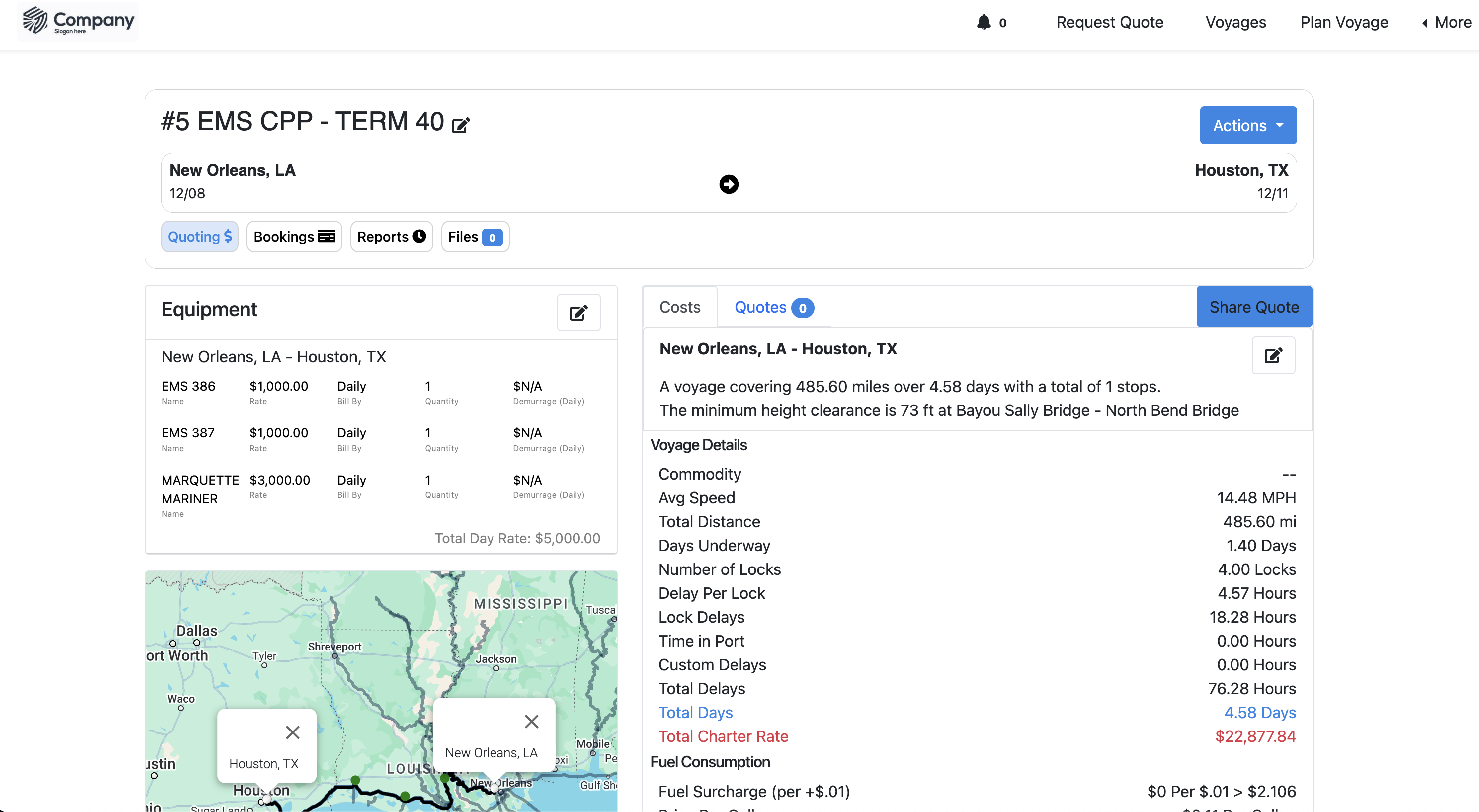
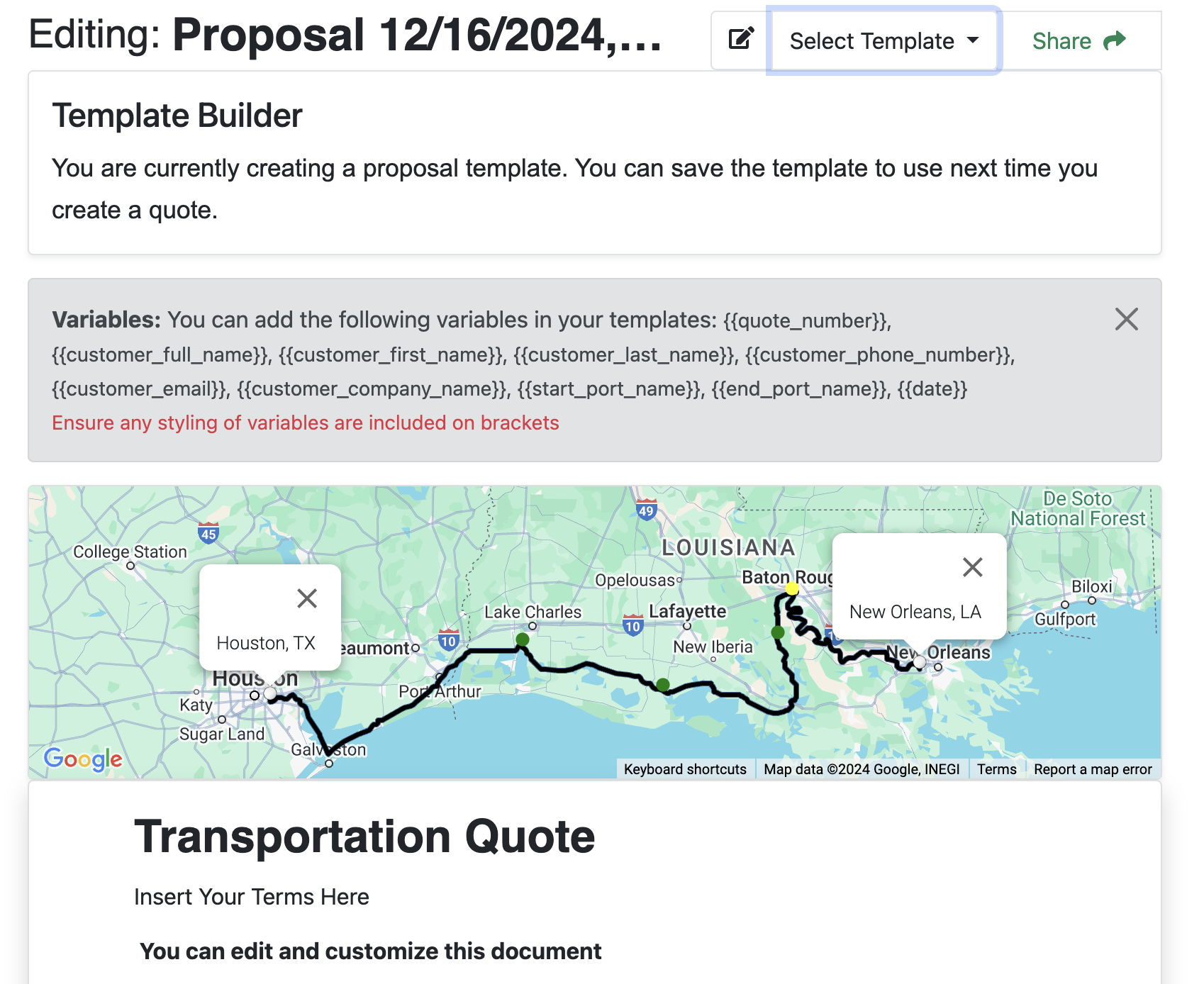
This will generate a quote based on the details calculated. You can customize the structure and design of this document with a Proposal Template.
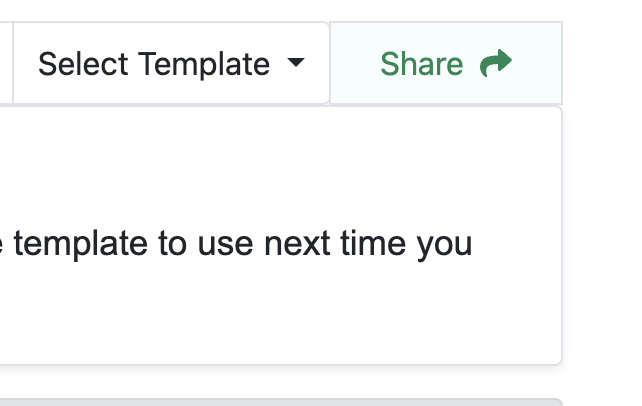
Once you are satisfied, click Share.
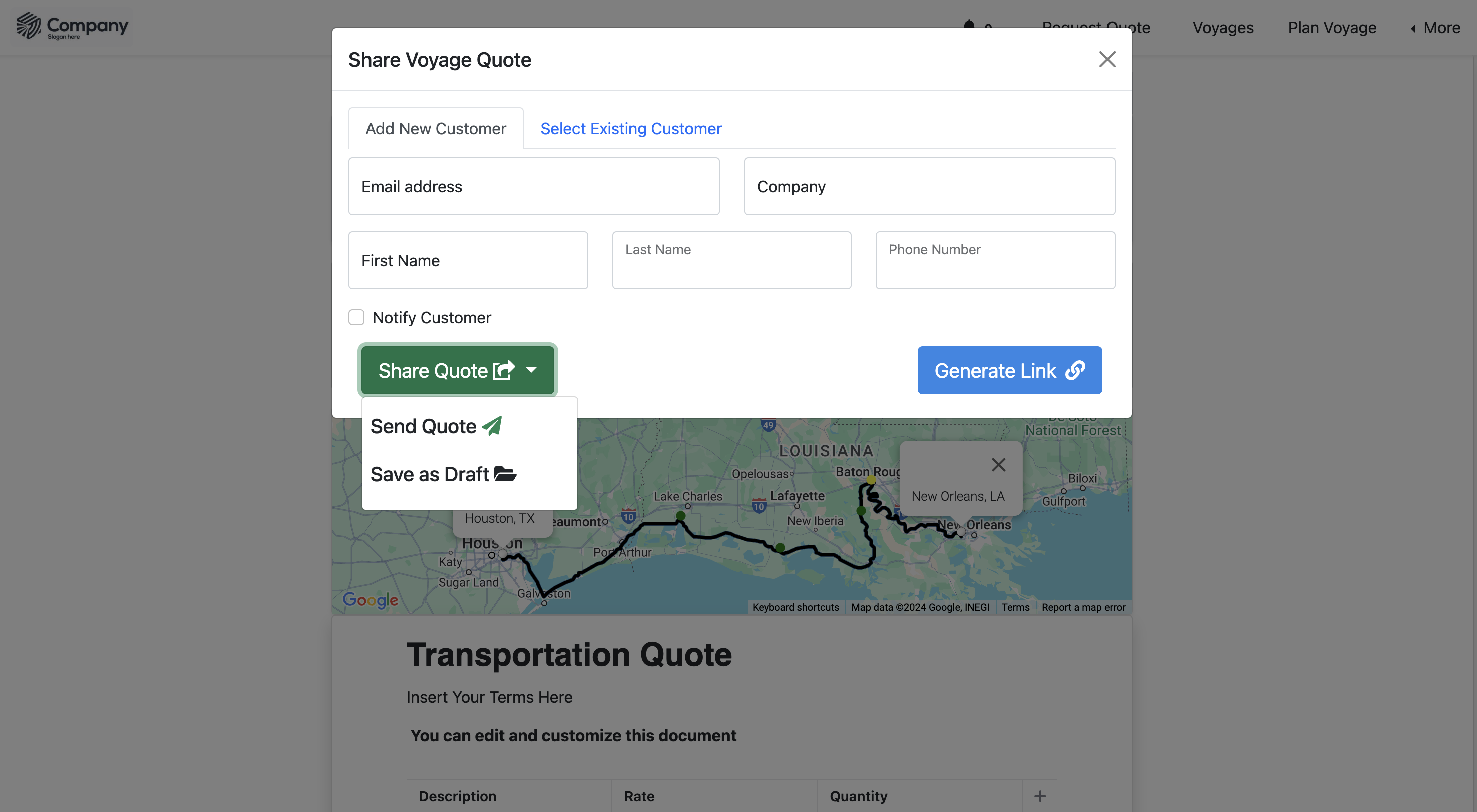
And send to a customer or save as draft.
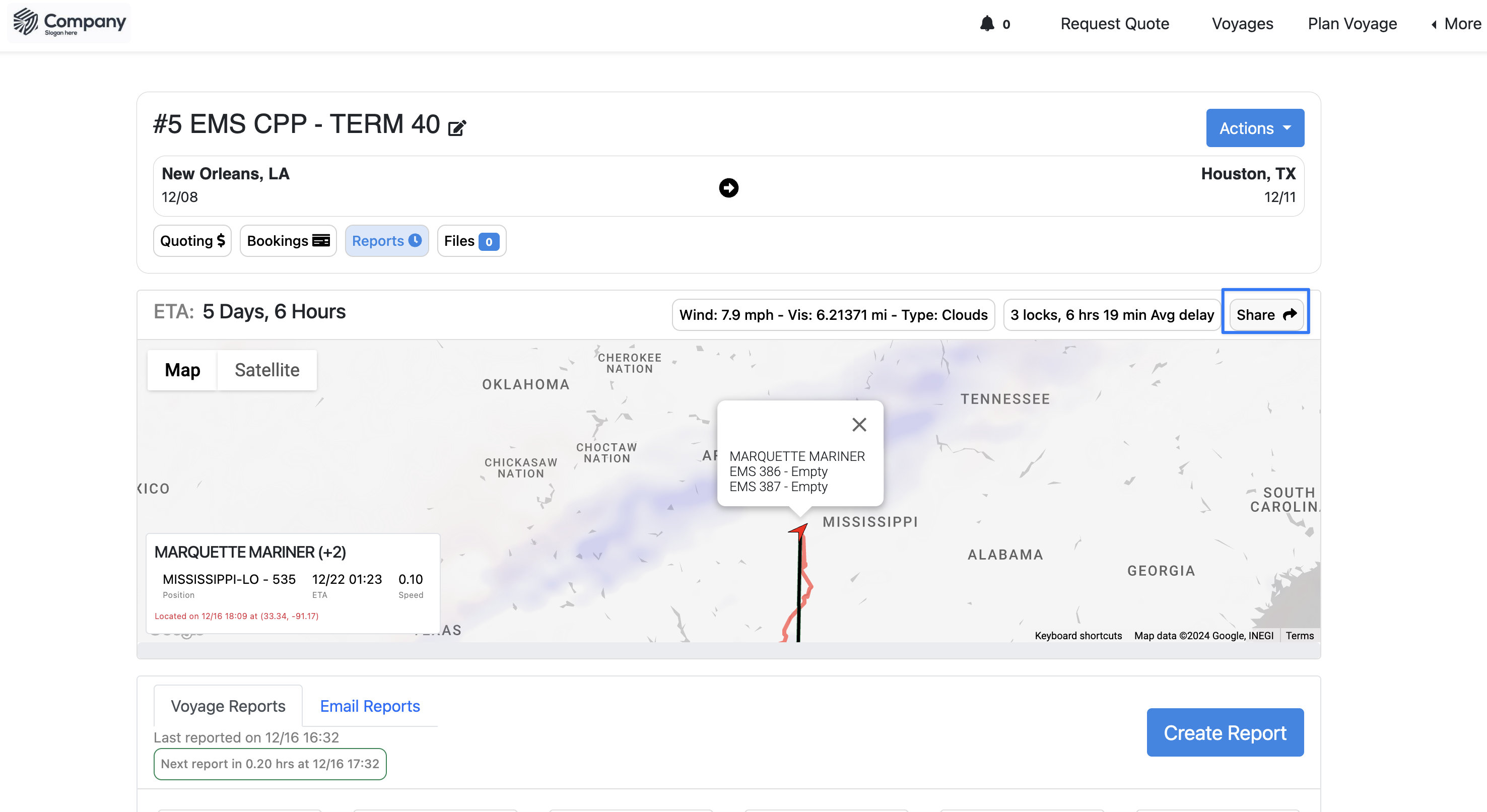
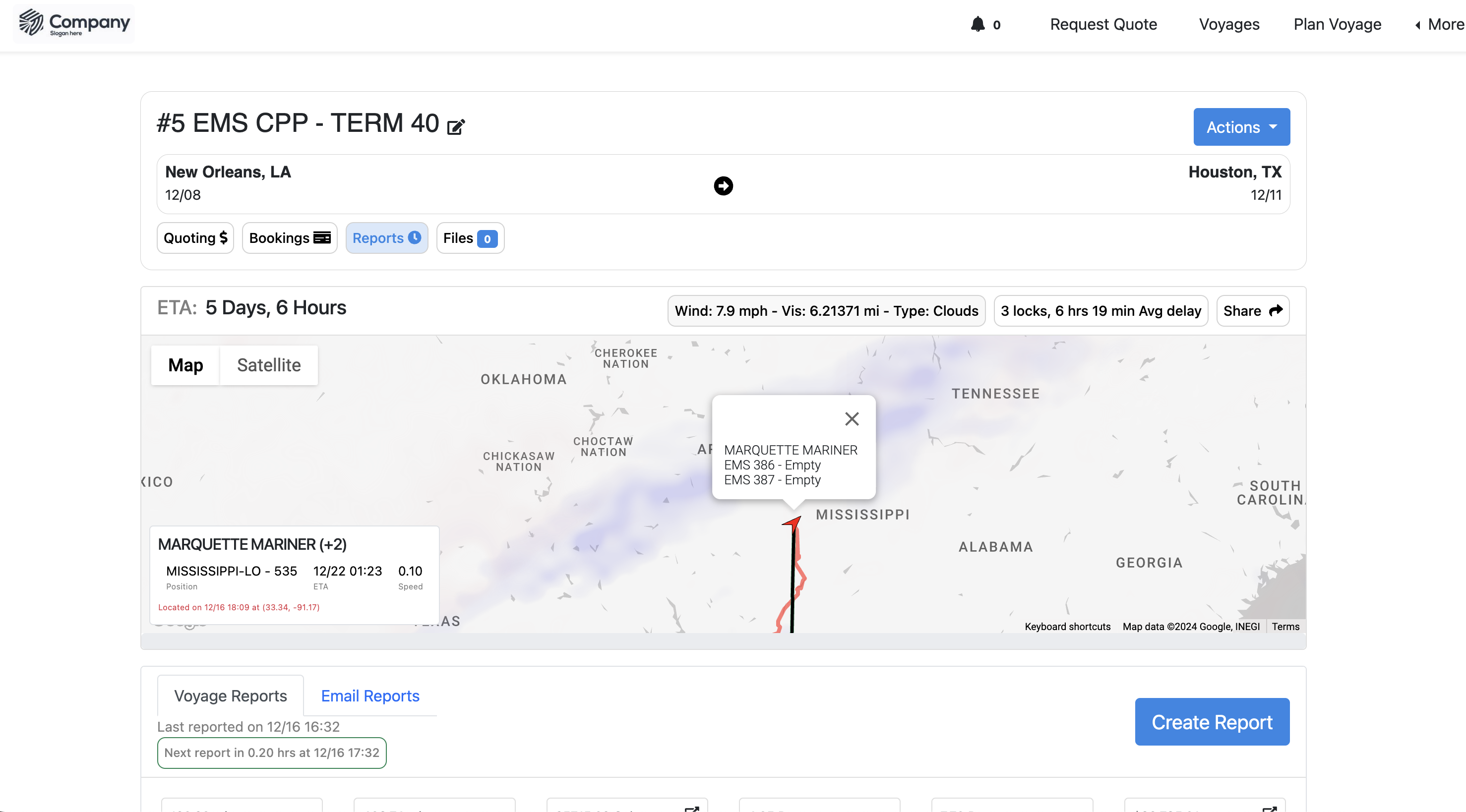
View Voyage Tracking Reports
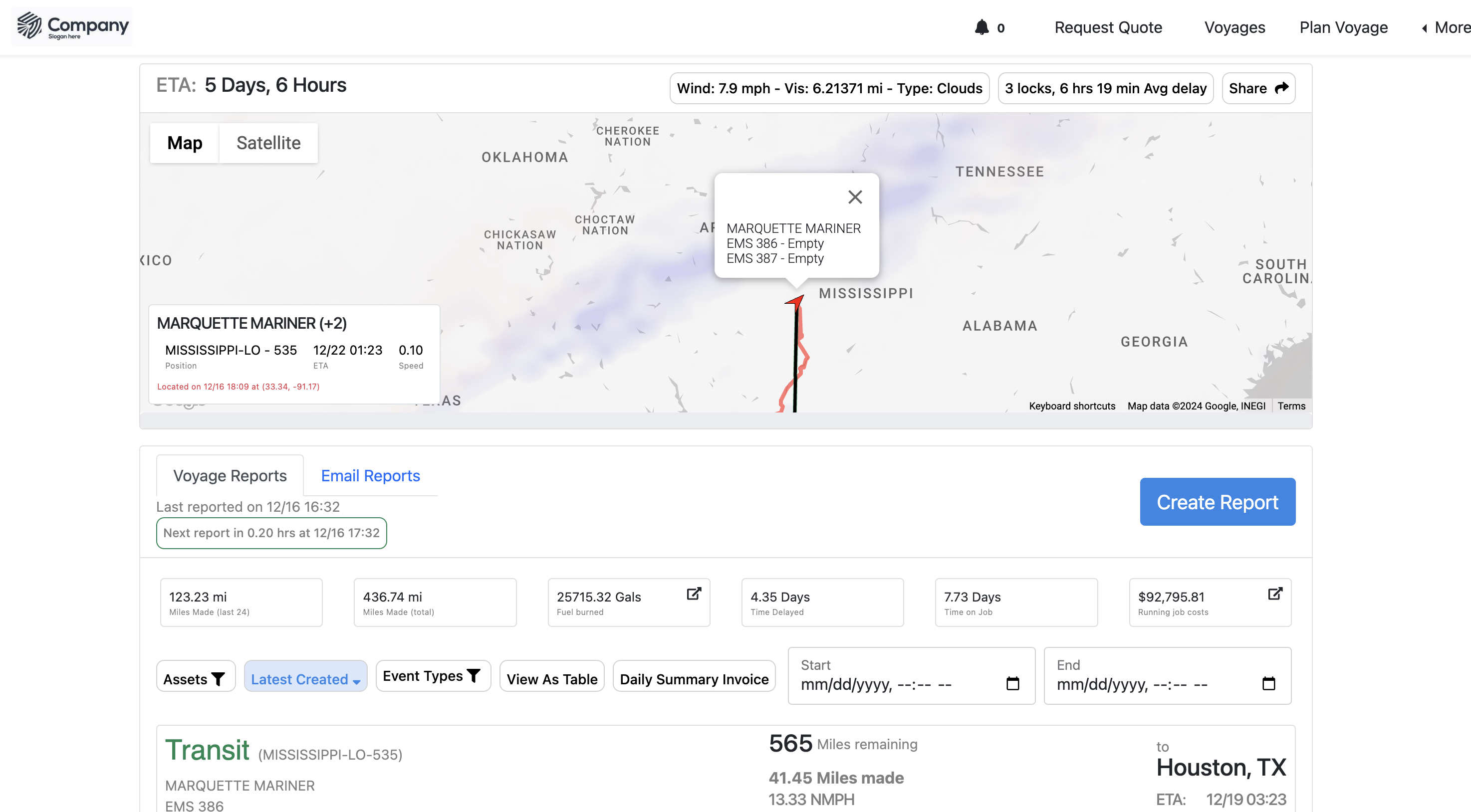
To see position reports, navigate to "Reports" after selecting a Voyage from the Voyage Dashboard.
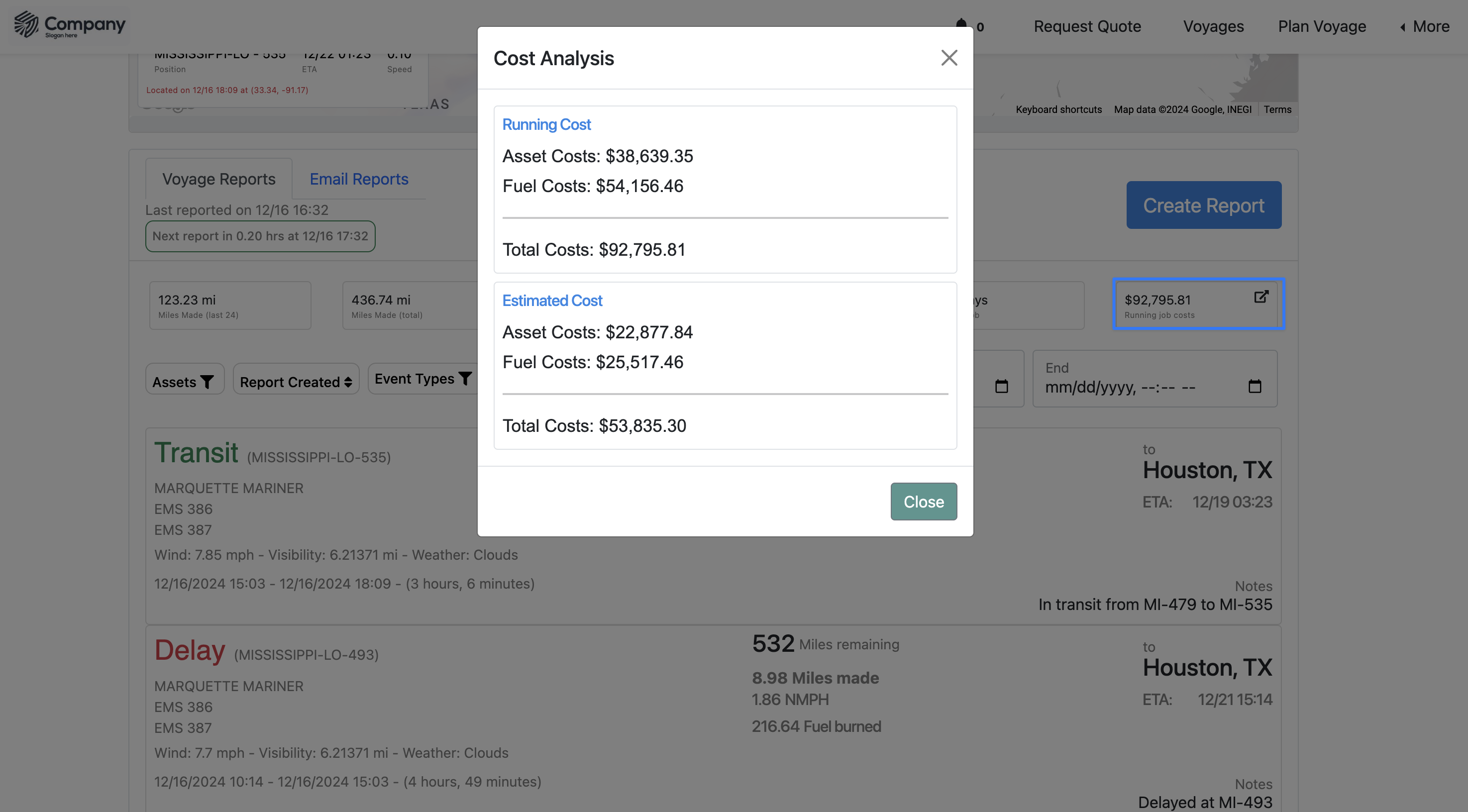
Click running job costs to view a cost analysis. This gives you an overview of the estimated running cost, compared to the initial plan. Estimates are calculated based on the recorded position reports and the asset's modeled fuel burn.
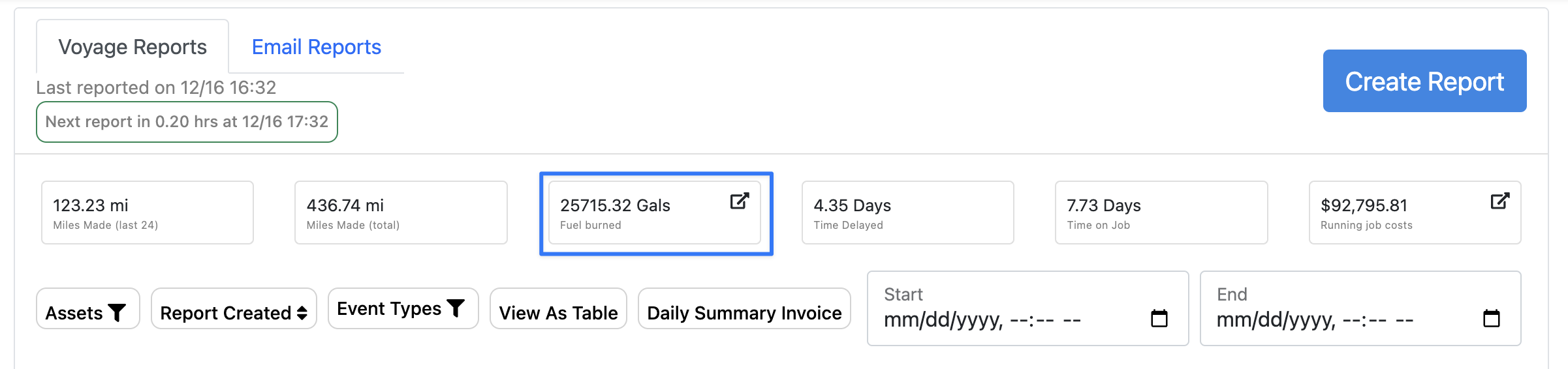
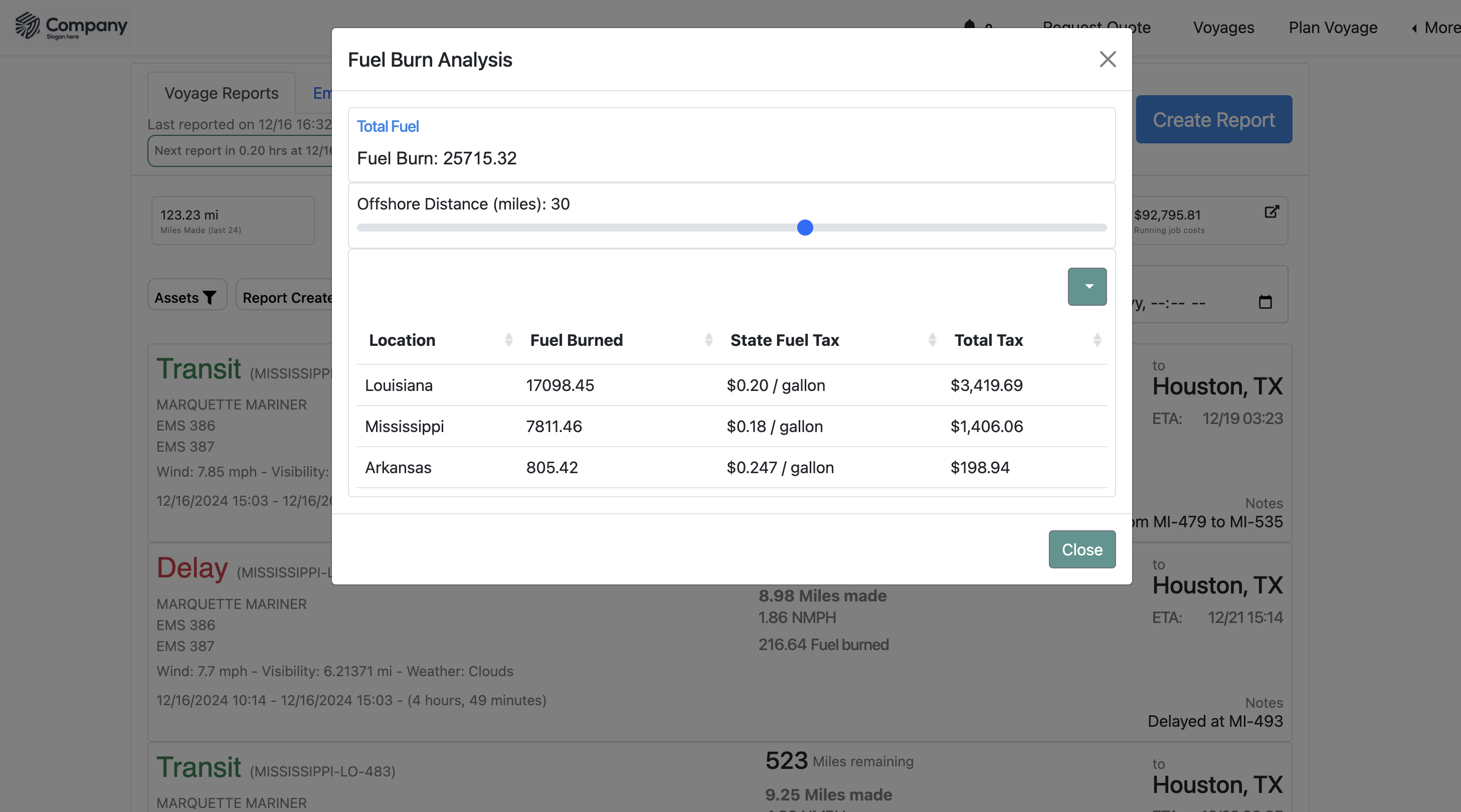
You can see more detail on the fuel burn analysis by clicking the Fuel Burned card on the dashboard. This shows total fuel burned, and can estimate the volume burned in different geographic regions for tax purposes.
View Weather Data
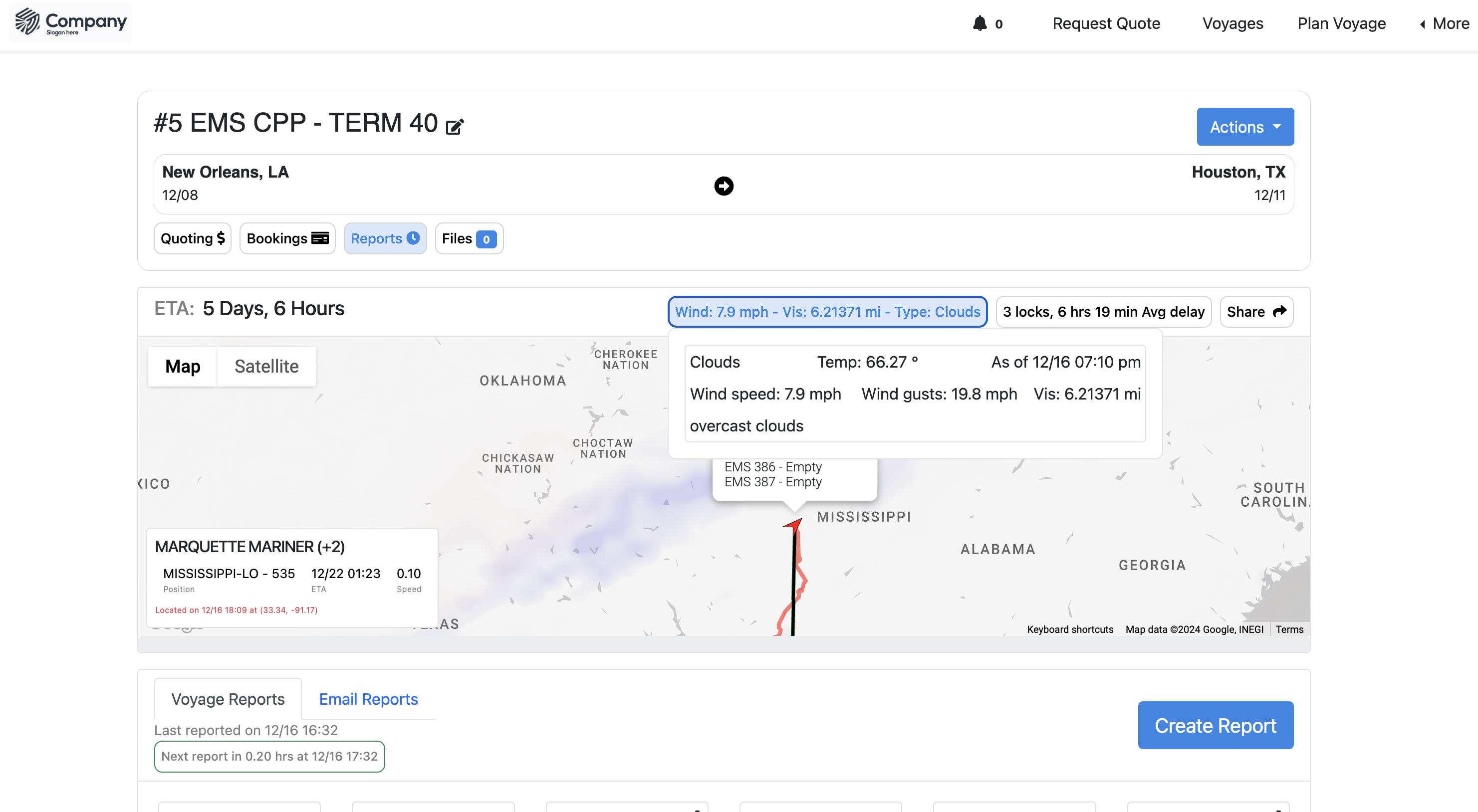
Click the weather information on the top right side of the screen.
View Lock Data
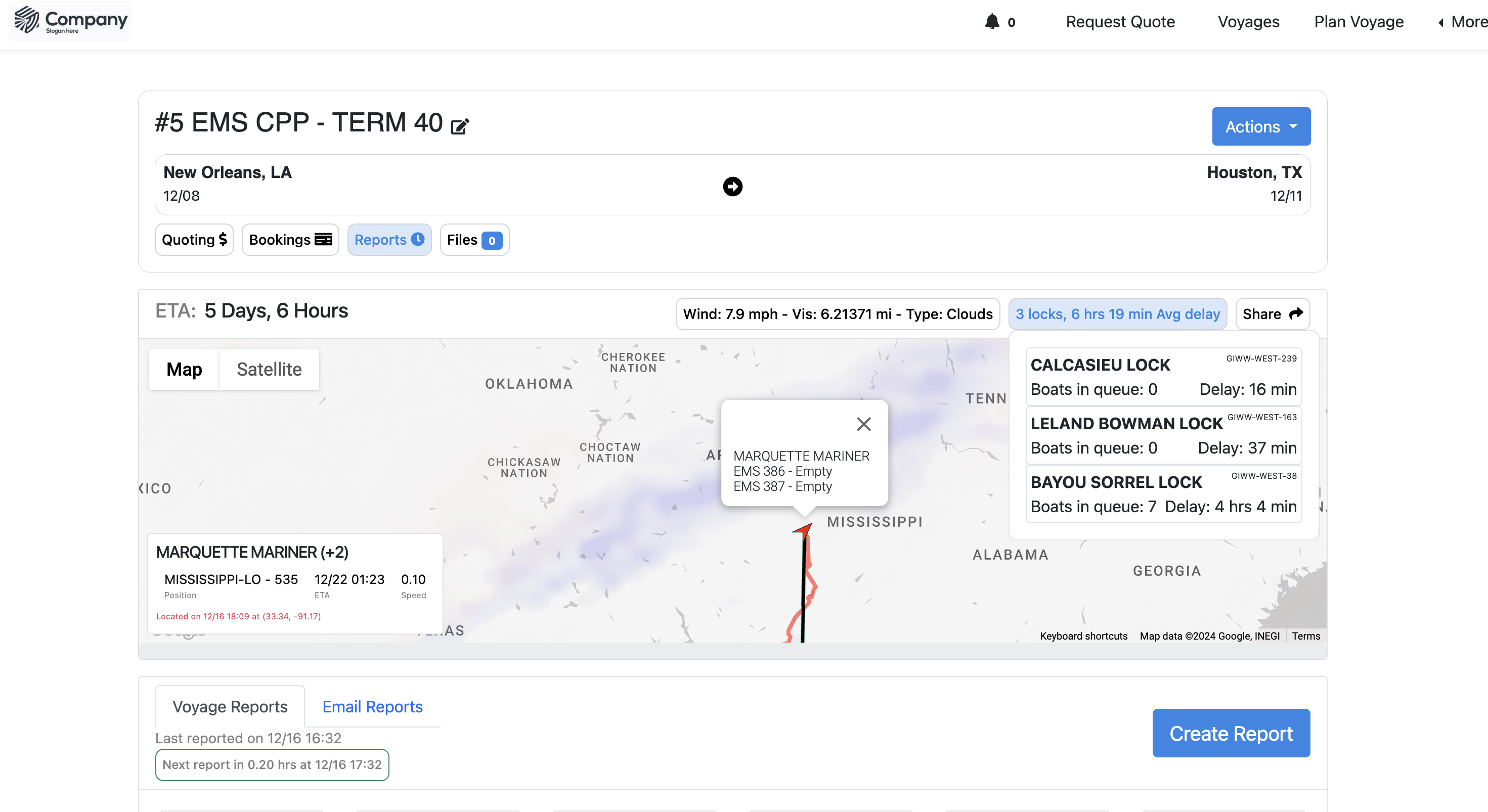
View Reports
Reports are listed below the map and card view. You can filter and sort these reports using the filters above the table.
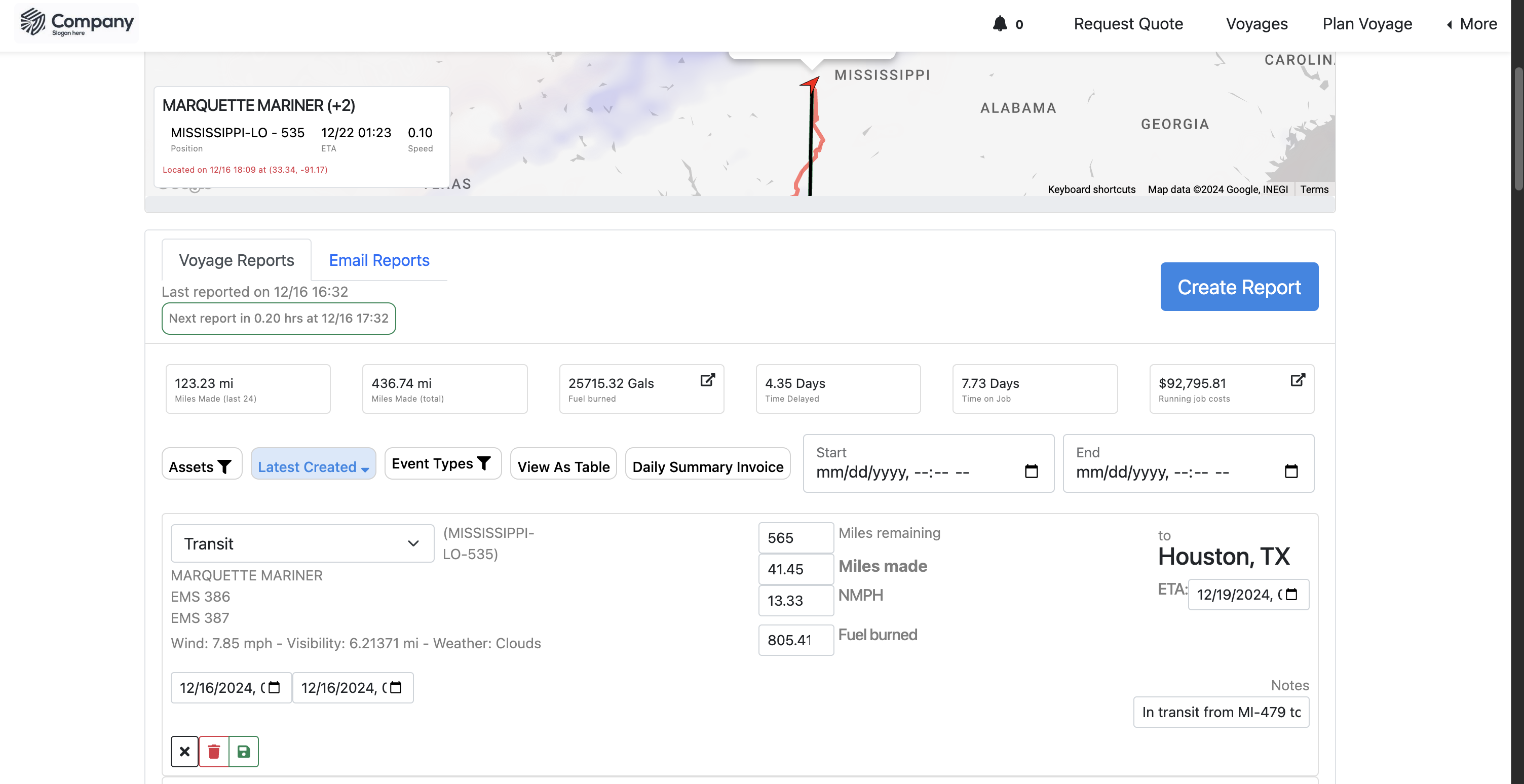
You can edit a report by double clicking on each card. You can log a report manually by clicking "Create Report"
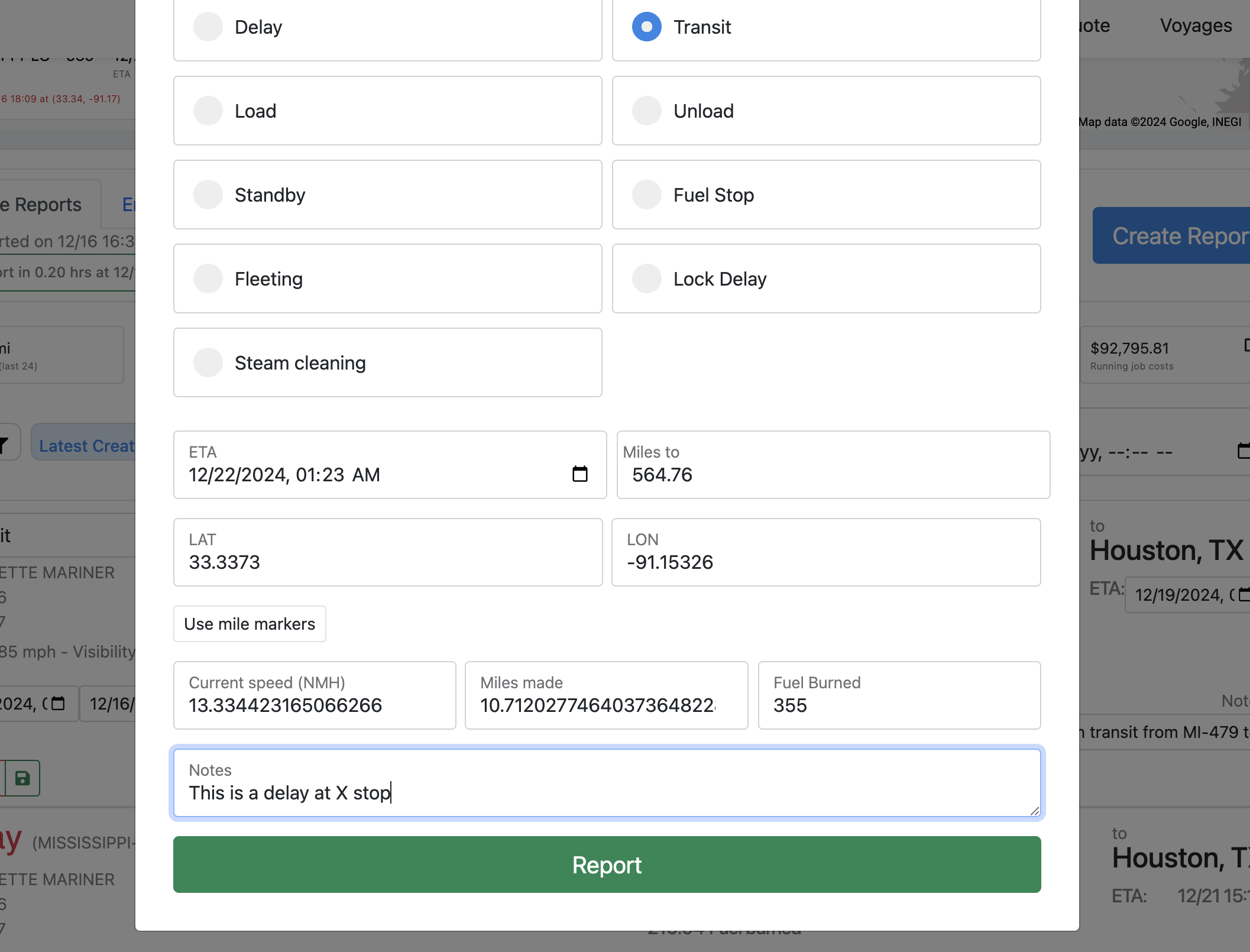
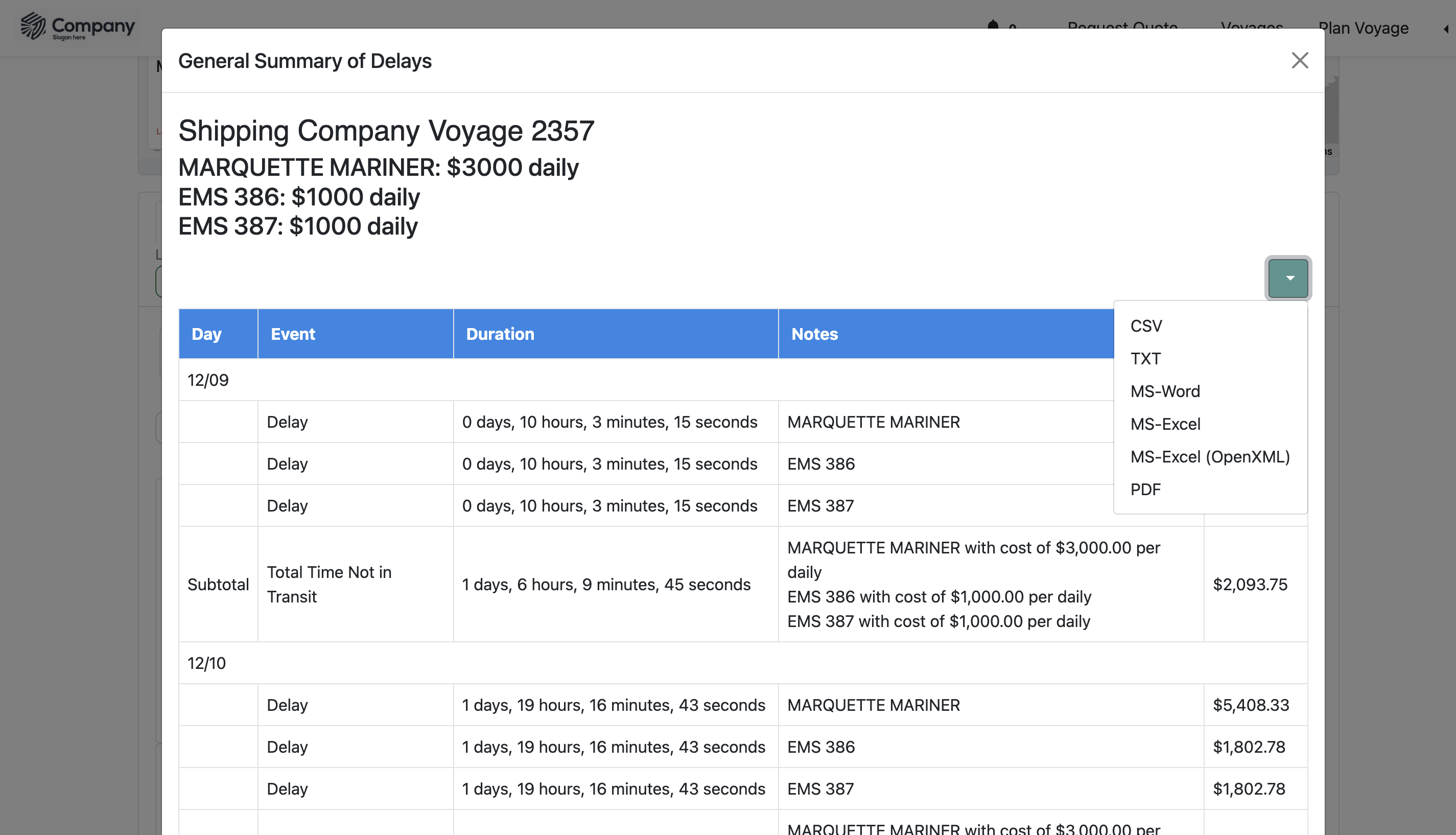
Daily Summary Report
The daily summary invoice provides a summary of delays for a given voyage. Here, delays are consolidated and costs for this time is estimated.
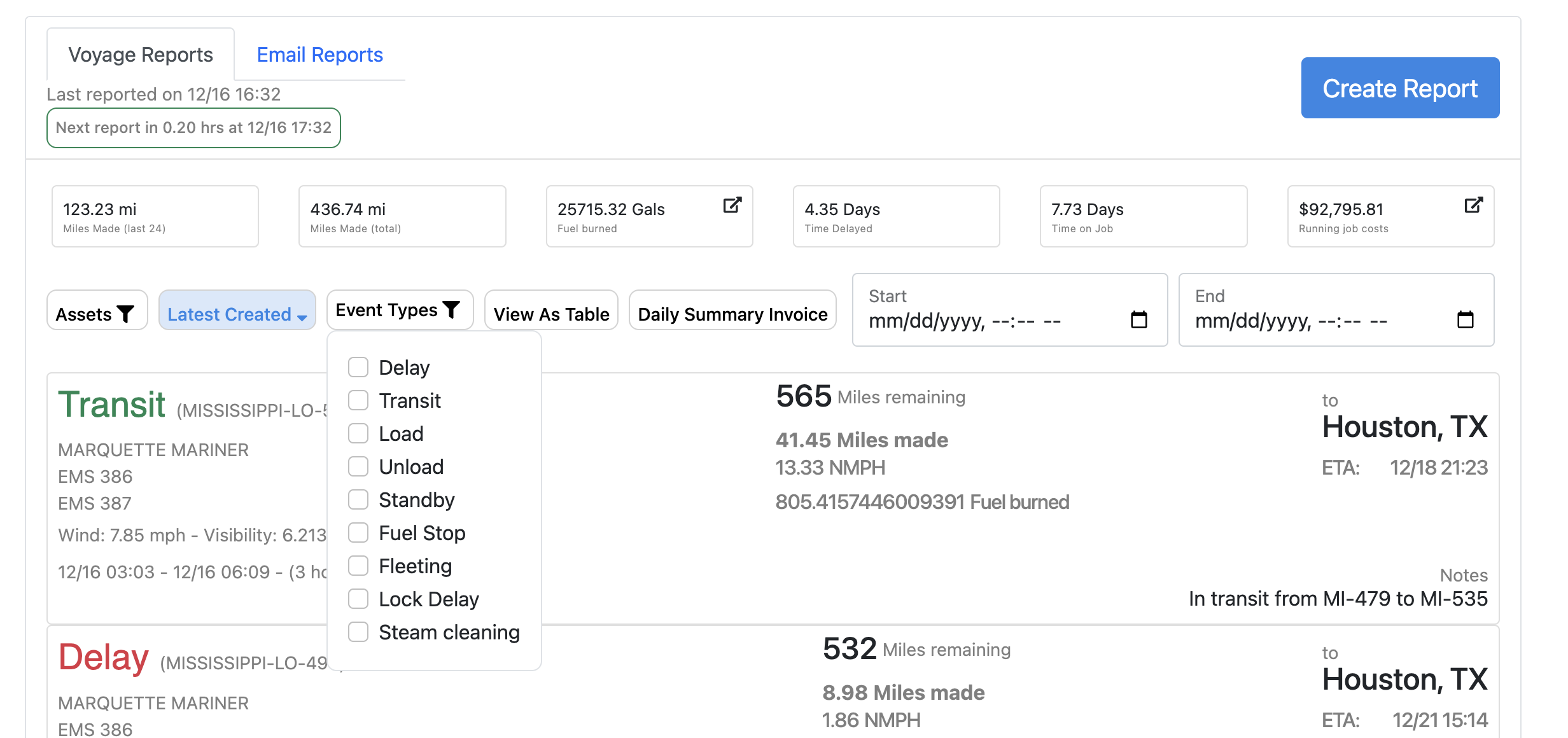
Filter by Event
Choose your desired events
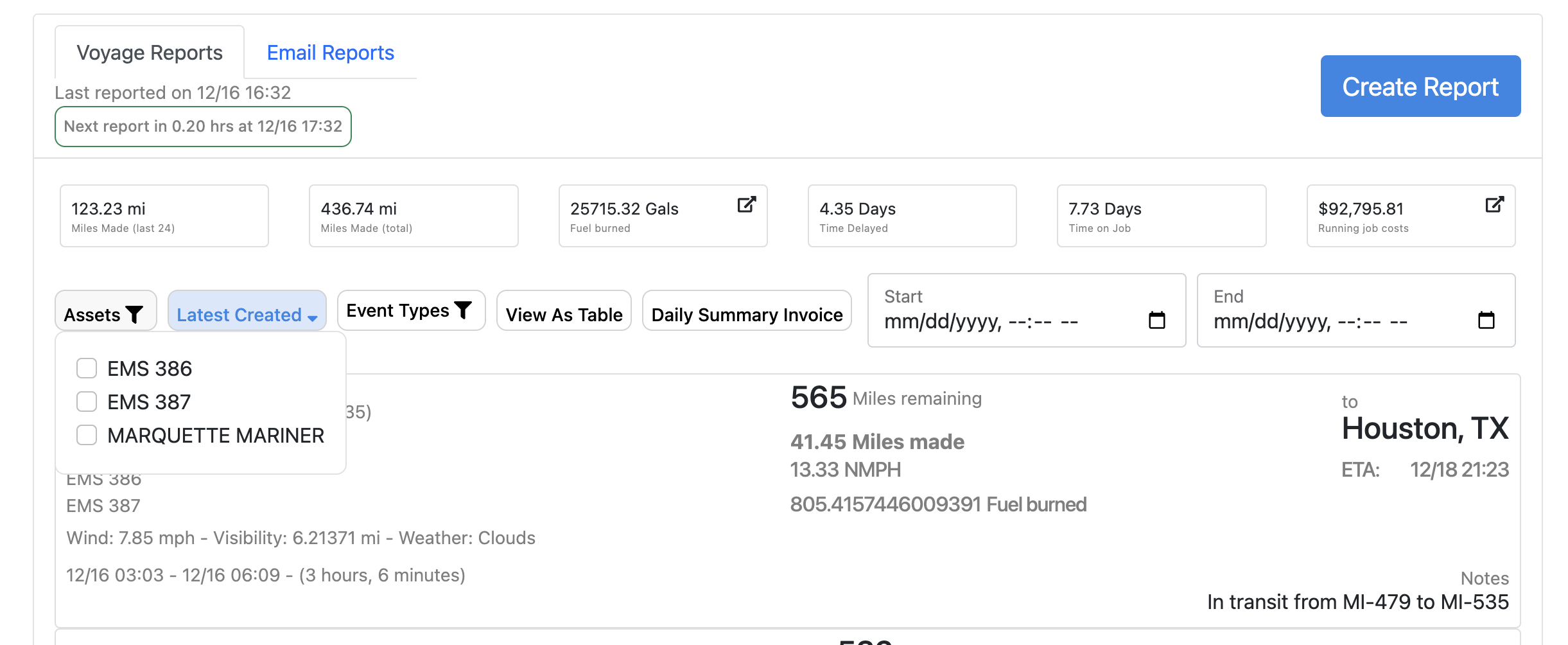
Filter by asset
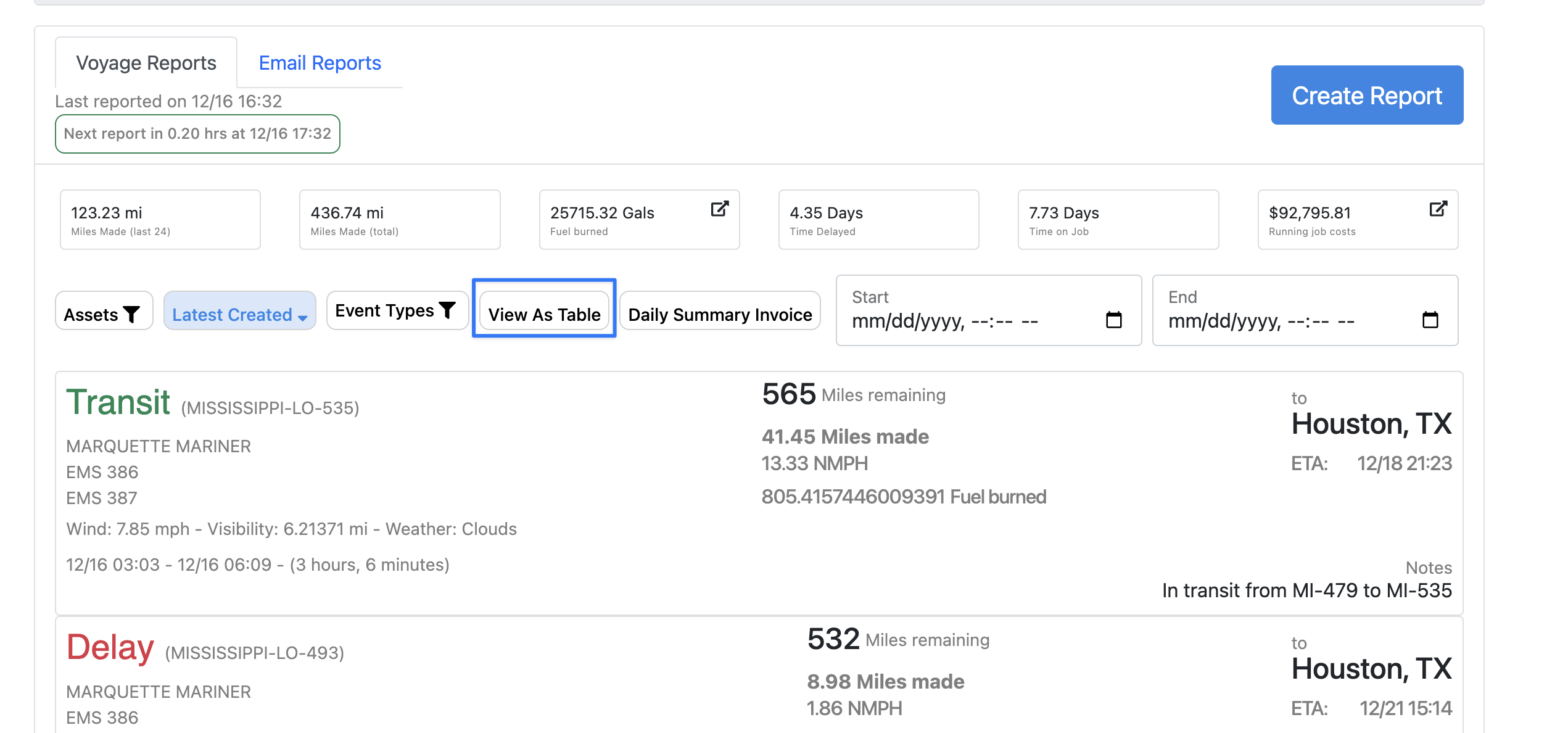
Export Position Reports
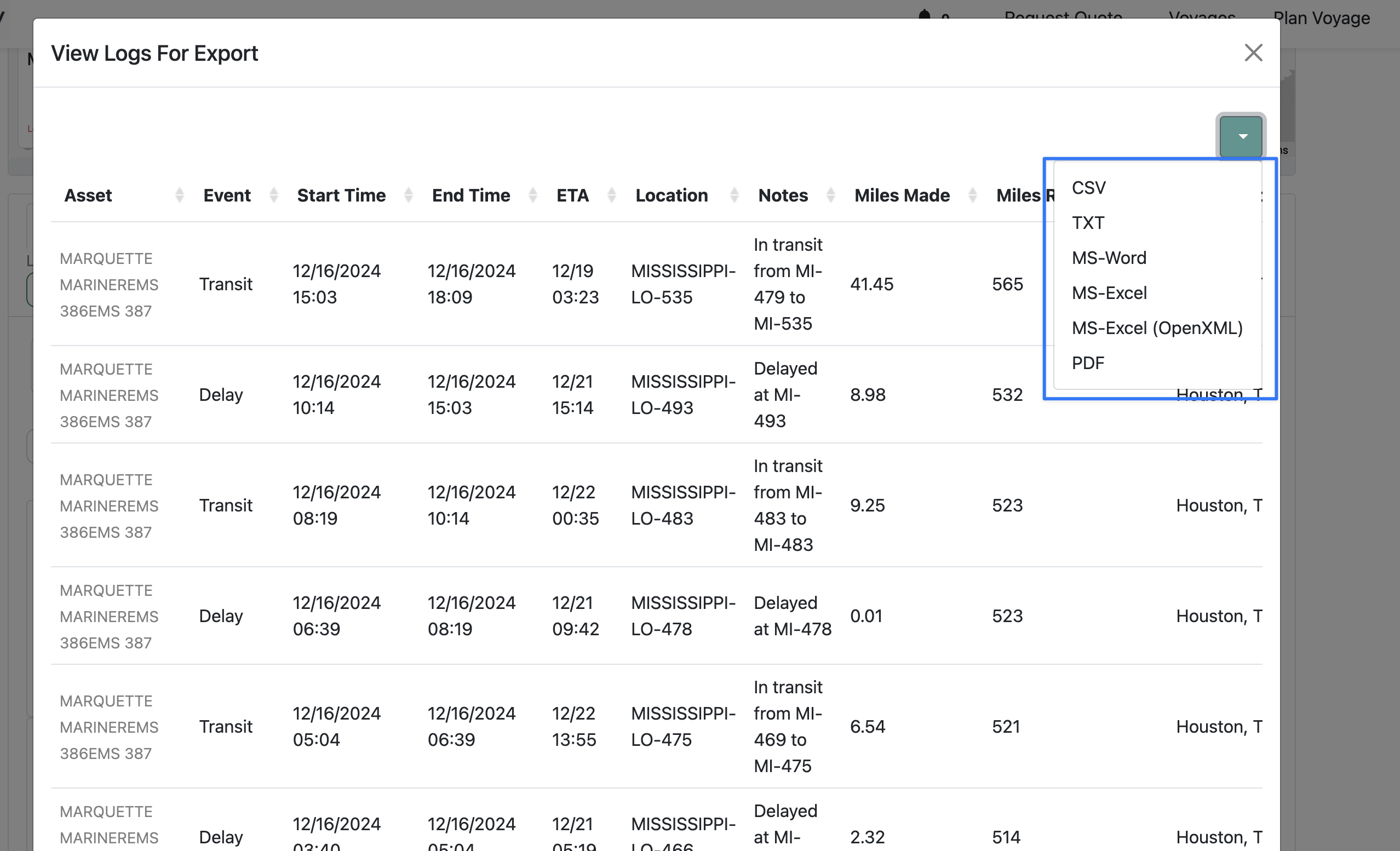
To export all position reports on a given voyage, first click "View As Table". From this view, you can export to the file format of your choosing.
Share Full Report Externally
To share the full report, click "Share" and configure your notification settings.